Manage Member Bank Information
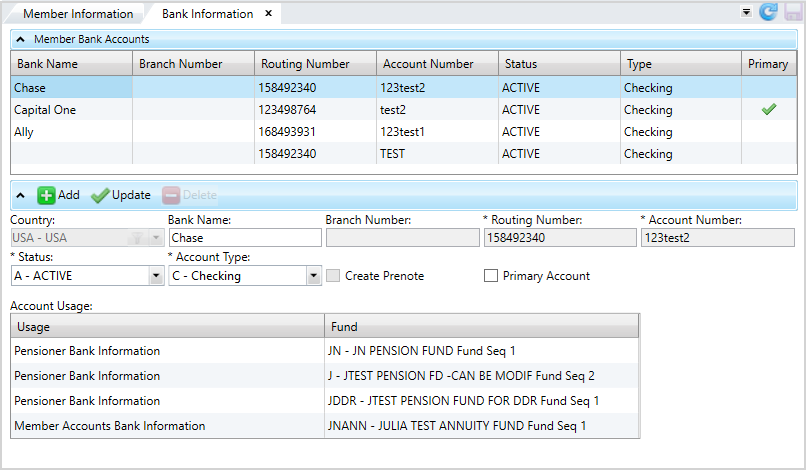
In Bank Information, add, update, and delete bank accounts for members. Use the Bank Information screen to track the bank account members use for ACH An electronic funds-transfer system run by the National Automated Clearing House Association (NACHA). This payment system deals with payroll, direct deposit, tax refunds, consumer bills, tax payments and many more payment services. payments to maintain their eligibility through COBRA, Direct Pay, Self Pay, or for retirees' Pension Disbursements.
When you add or update bank information for a member, you have the option to create a pre-note transaction. A pre-note has a 0.00 transaction amount and a pre-note transaction code so you can confirm the bank details are correct before creating an EFT Electronic funds transfer-money that is transferred electronically. transaction. This pre-note process works for member payments (not integrated with Pensioner pre-notes, for example).
Generally, EFT bank information doesn't change often so you might only need to do this once for a member.
Member bank information is maintained and updated in a couple ways:
- By an internal operator using this function (
Bank Information). - By the member online using the Member portal.
Bank Information screen. Contact your administrator to gain access.Access Bank Information
- Search for and open a member record.
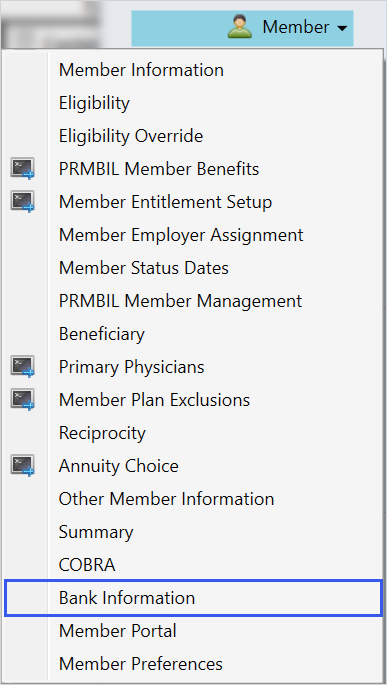
- Select
Memberand clickBank Information. - From
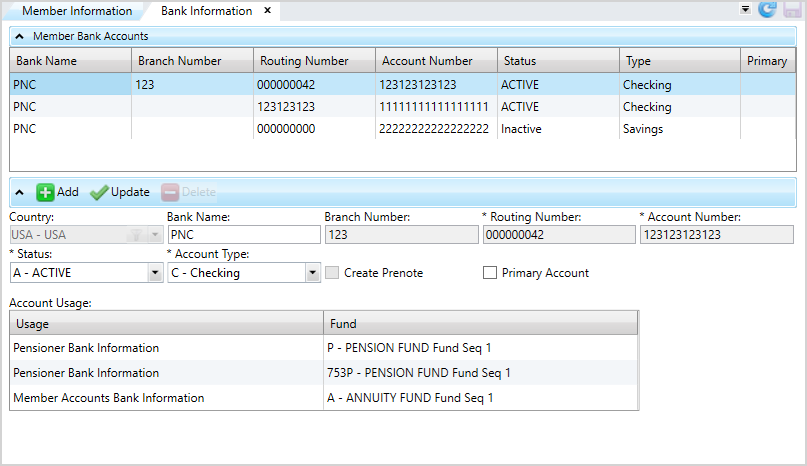
Bank Information, you can manage bank accounts for members and view the disbursements associated with their bank accounts in theAccount Usagetable. - Double-click a row in the
Account Usagetable to display the function that uses the bank account. For example, double-clicking the Pensioner Bank Information row will display the Pensioner disbursement sequence'sBank Informationsubtab, with the selected bank account in focus. -
USA—USA. -
CAN—Canada. -
Y—Yes, calculate the ninth digit. -
N—No, display a message that you entered an invalid routing number. Double-check the routing number and reenter. Active—Indicates the bank account information is currently used for credit and debit transactions.Inactive—Indicates the bank account information isn't used for transactions.Pre-Note—Indicates a pre-note transaction will be sent. The pre-note transaction is a sample EFT record with zero dollars to verify bank routing and account numbers before actually transferring funds from the bank account.- You change the status code to a
pre-notestatus. - You change the routing number, account type, or account number for a bank account that has a
pre-notestatus.
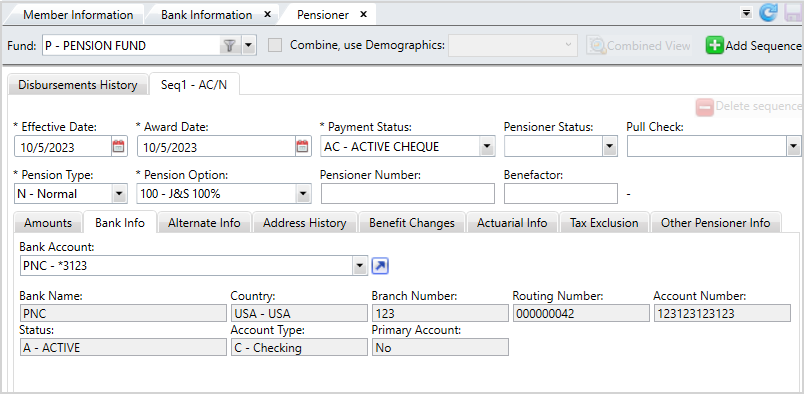
 from the selected Pensioner or Annuity disbursement to quickly open Member Bank Information. The bank account for the selected disbursement will be in focus. If no bank accounts are on file for the disbursement, your cursor will be focused on the
  button to add an account.
* indicates a required field
| Field | Description |
|---|---|
| Country |
The country of the bank account: |
|
Bank Name |
An alpha-numeric name that identifies the bank account. The name can have up to 15 characters. |
|
Branch Number |
The branch number of the bank used for EFT |
|
Routing Number* |
A 9-digit number that identifies the bank. The routing number can't start with 4 or 5. The ninth digit is a check digit. The ninth digit number you enter is validated based on the other eight digits. If the ninth digit is incorrect, a message indicates the correct ninth digit so you can correct it. GAP SAC <54> |
|
Account Number* |
The bank account number used for EFT transactions. |
| Account Type* |
Select either Note: The bank might reject the transaction if you choose the wrong account type.
|
|
Status* |
The status of the bank information on file (configured in Manage EFT Status Codes). Select a status code from the list. Status codes are associated with a type: active, inactive, or pre-note. Note: Depending on your system setup, you might not be allowed to change a
pre-note status to active if a pre-note transaction hasn't been created yet for the bank account. |
| Create Pre-Note (check box) |
After you save the bank account information, the check box updates and a pre-note transaction is created if: You can clear the check box if appropriate. Note: This field doesn't apply to pensioner or annuity prenotes. The payment status of the sequence and those modules' prechecks determine the prenotes.
|
| Primary Account (check box) |
A check box to indicate if this is the member's primary bank account. This bank account will display by default when making member payments, but you can still select another account for payment. A green check mark displays in the You can't select inactive bank accounts to be the primary account. Note: This field isn't applicable to annuity or pensioner disbursements.
|
| Account Usage | |
| Usage | Displays the disbursements associated with the selected bank account. |
|
Fund |
The Fund Code - Fund Name Sequence Number of an associated disbursement. |
Home > System Administration > Security > Sensitive Data Control. Apply the control to a role in the Profile Editor to mask the data.Add Bank Information
-
Click
. -
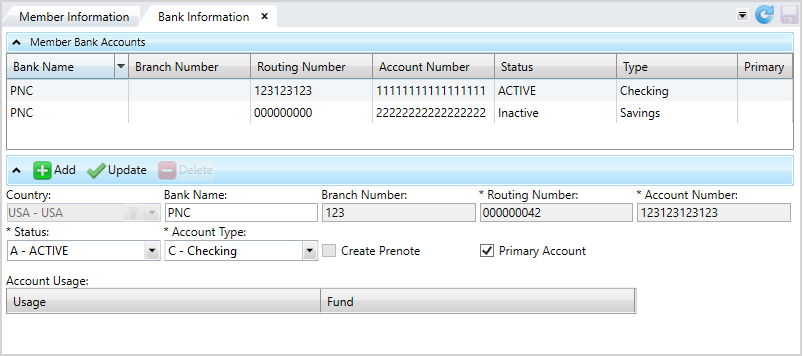
Complete the bank information fields.
- Select the
Country. - Enter the
Bank Name. - Enter the
Branch Number. - Enter the
Routing NumberandAccount Number. - Choose the bank account
Status: Active—Indicates the bank account information is currently used for credit and debit transactions.Inactive—Indicates the bank account information isn't used for transactions.Pre-Note—Indicates a member pre-note transaction will be sent. The pre-note transaction is a sample EFT record with zero dollars to verify bank routing and account numbers before actually transferring funds from the bank account. (This doesn't affect pensioner pre-notes.)- At
Account Type, chooseCheckingorSavings. - Select the
Create Prenotecheck box if you want to create a pre-note transaction. Make sure you have theStatusset toPrenote. This field doesn't apply to pensioner or annuity prenotes. The payment status of the sequence and those modules' prechecks determine the prenotes. - Select the
Primarycheck box to make this bank account the member's primary account. This field doesn't apply to pensioner or annuity disbursements. - After reviewing the information, click
 .
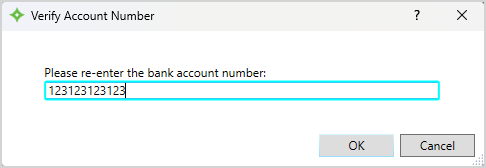
. - To validate the member's bank information, re-enter the bank account number. Click
 to confirm or
  to return to the member
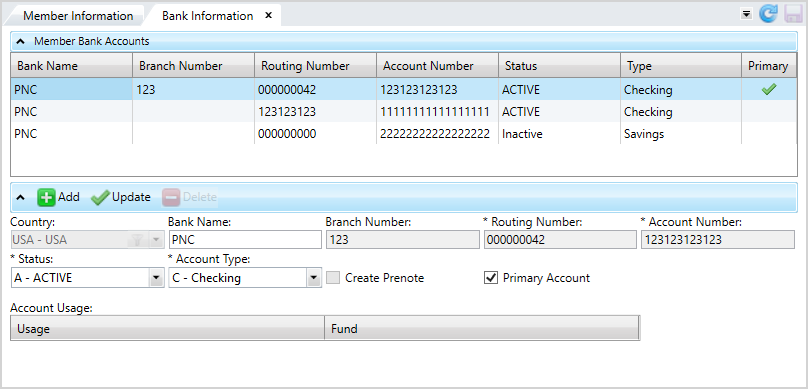
 Bank Informationscreen without saving. Ensure the account numbers match or you'll have to enter it again. - Click
 to save.
Update Bank Information
- Select the member bank account to update.
- Make any changes to the banking fields as needed and click . If you changed the bank account information, you might need to re-enter the bank account number.
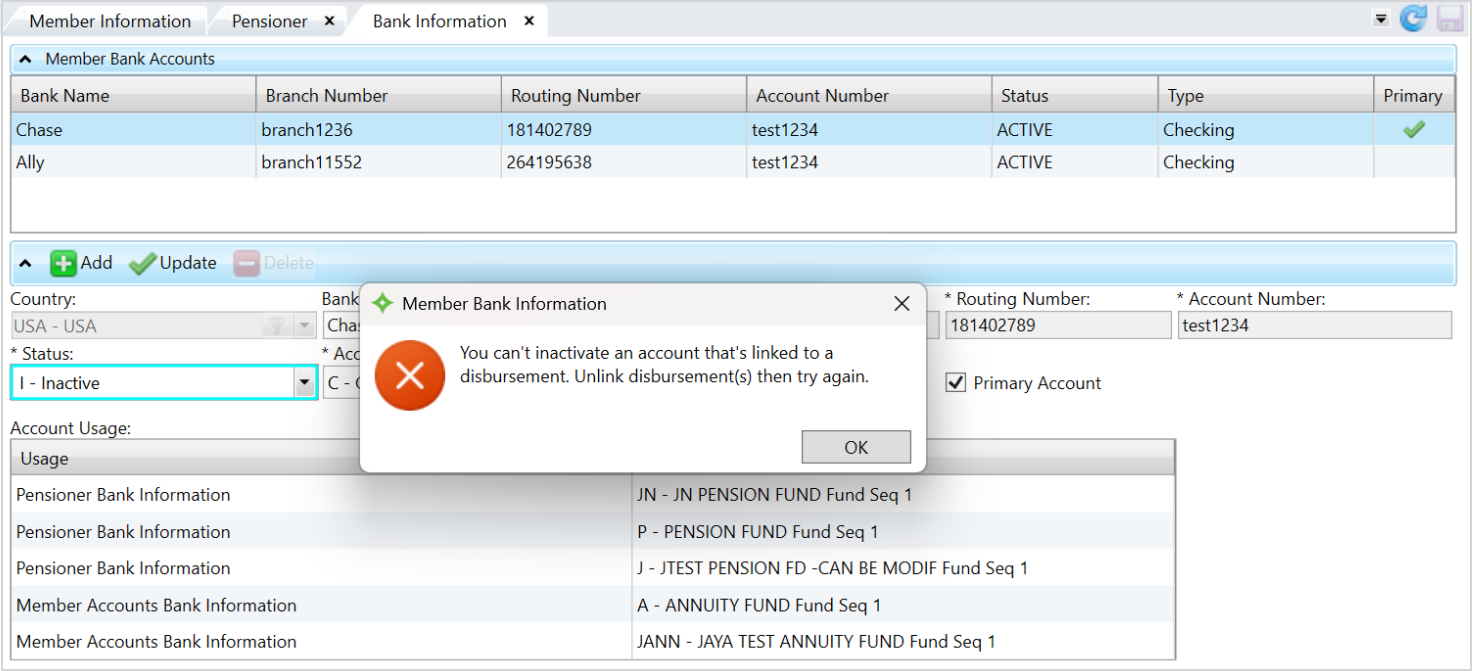
- You'll also receive a message if you attempt to inactivate a bank account that's still linked to a disbursement.
- Click to save.
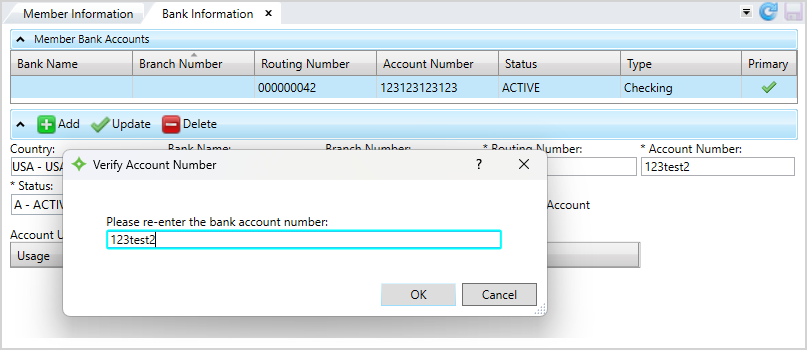
Status, Bank Name, Account Type, and Primary Account check box. You can't change the status to inactive if the account is linked to a pensioner or annuity disbursement.
Delete Bank Information
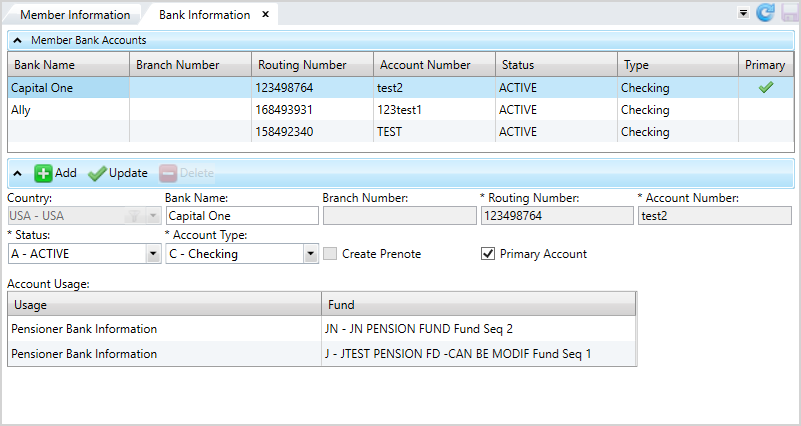
- Select the member bank account to delete.
- Click
 .
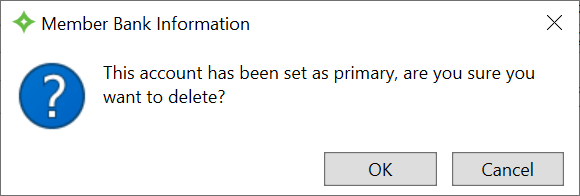
. - If you're deleting a Primary bank account, you'll receive the message "This account has been set as primary, are you sure you want to delete?". Select to delete it or to return to the
Bank Informationscreen. - Click to delete the bank account and save.
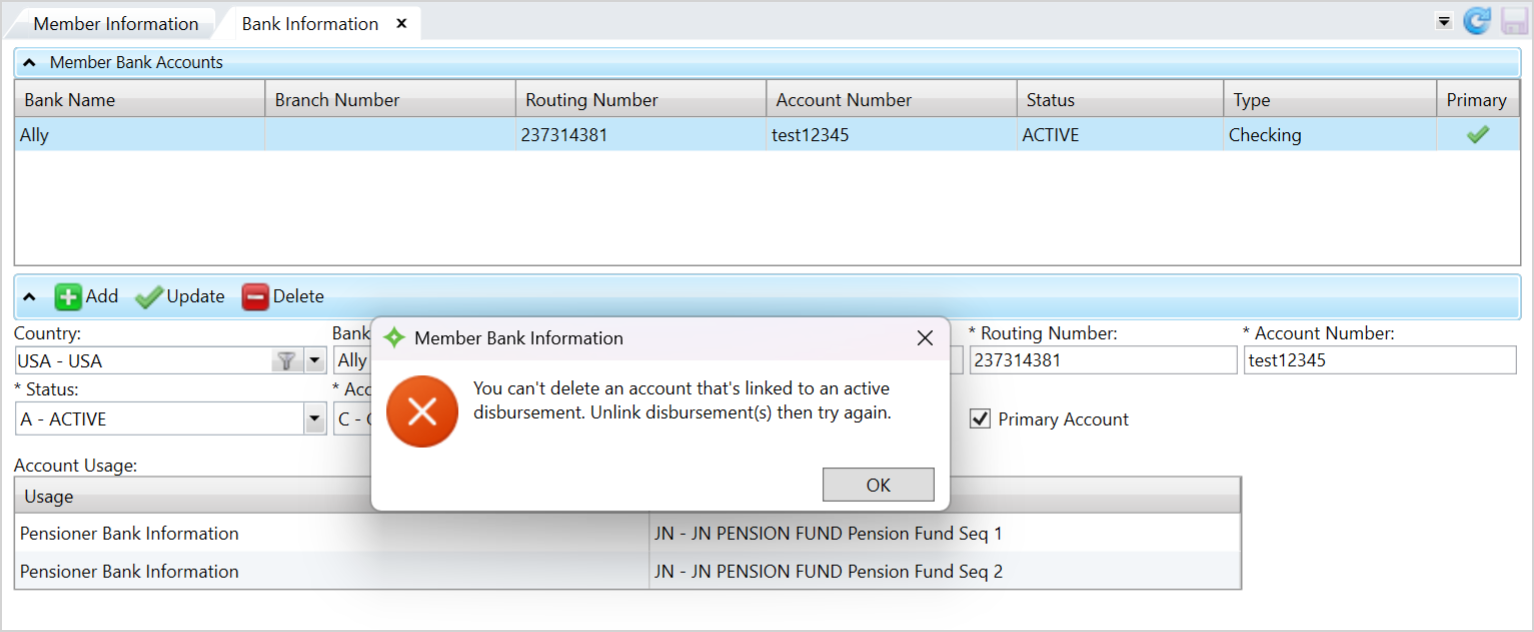
- If you attempt to delete an account linked to active Pensioner or Annuity disbursement sequences, a warning message displays:
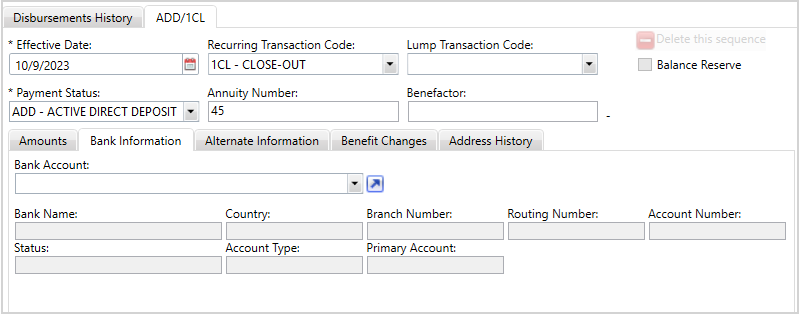
- Double-click the usage row to go to the Pensioner or Annuity Disbursement and choose the sequence associated with the bank information.
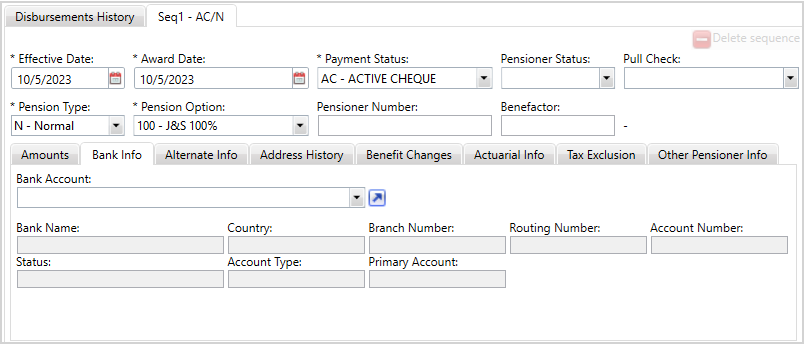
- Deselect the bank account and click to save. The bank account is no longer linked to the disbursement.
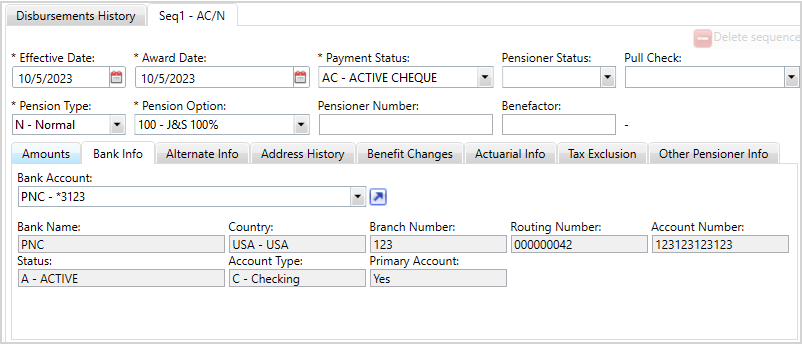
Pensioner Disbursement Example
Bank information linked to Pensioner Disbursement
Bank information no longer linked to Pensioner Disbursement
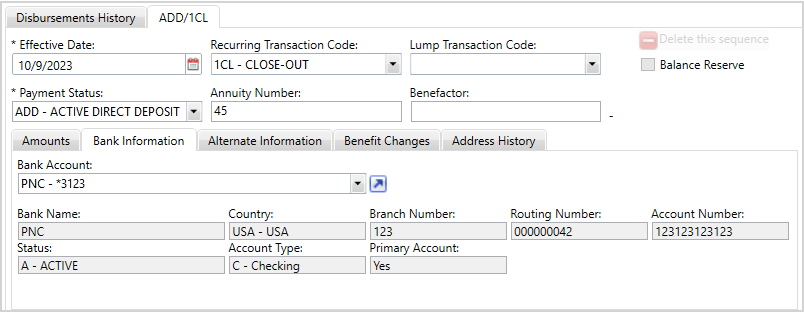
Annuity Disbursement Example
Bank information linked to Annuity Disbursement
Bank information no longer linked to Annuity Disbursement
Banking Enclosures
In the member's Correspondence viewer, you can see the enclosures used for member banking.
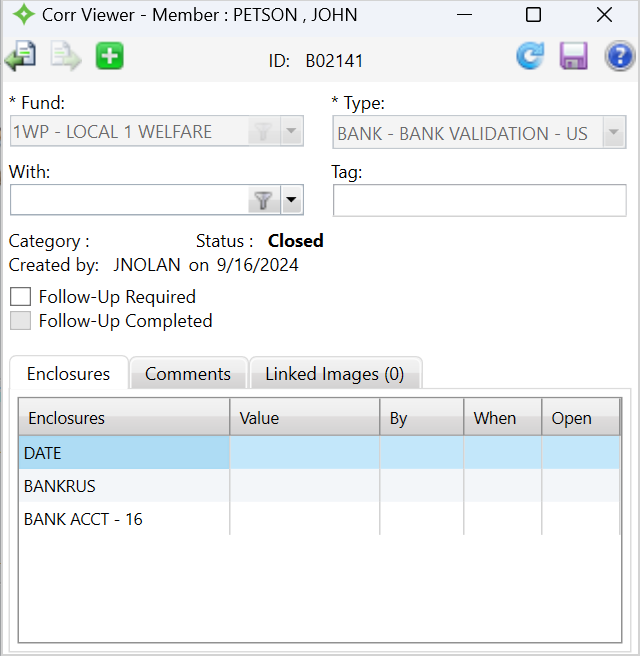
The banking enclosures include:
-
The associated date.
-
US and Canadian routing numbers.
-
US and Canadian account numbers.
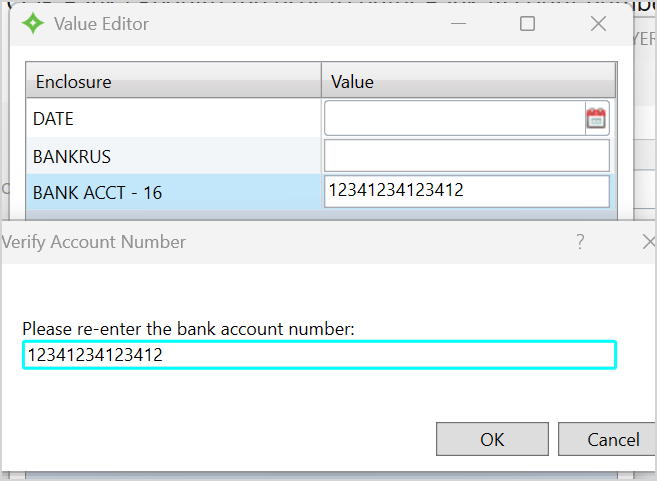
Validate the bank account number and routing number. You won't be able to save invalid values.
If you're entering or editing bank account information, you'll need to enter the bank account number twice for validation. Click to confirm or to return to the Value Editor without saving. Ensure the account numbers match or you'll have to enter it again. For example: