Classic sessions
Some menu functions open in a classic session. In a classic session, you can have up to six functions open and you can navigate back and forth between them by the tabs. The  distinguishes classic session tabs from other session types. Similar to other sessions, the classic session has a navigation pane and a workspace. For help with classic functions, type the function name in the help system
  tool.
tool.
Navigation pane
The navigation pane has the following areas—Pending Functions, Classic Settings, and Recent Functions. When you close a classic session or completely exit the software, the system clears out the Pending and Recent Functions areas; they will be blank the next time you open a classic session.
Pending Functions—You can have only six functions open at a time. If you open more than six, the list displays in the Pending Functions area. As you close and open function tab, the first one pending will open. To delete a function listed in the Pending Functions area, select it and clickDelete.Classic Settings—This area indicates the remaining function tabs you can open (the total allowed is six). The maximum number of sessions includes both eFlow and classic screens.
Recent Functions—This area shows the functions you previously opened and then closed. To open a recent function, select it and clickExecute Function.
Workspace
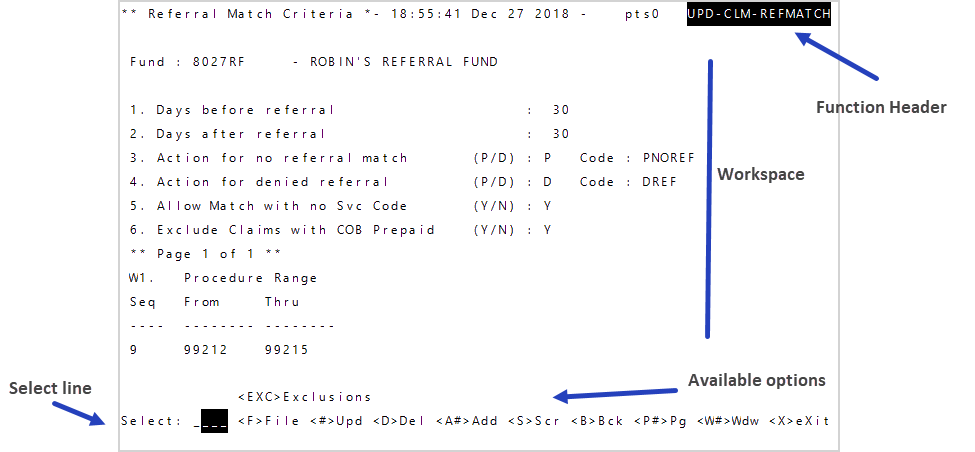
The workspace can be broken out into the following areas:
- Function Header—The function header shows the screen name on the left, the current date and UniData
 Multivalued database with variable length records that basys uses for application data storage. account in the middle. The name of the software program is on the right. In the example,
 Referral Match Criteriais the screen name andUPD-CLM_REFMATCHis the program name. - Workspace—This is the area in which you'll view, add, update or delete data depending on your permissions. The workspace might have windows within it dividing the workspace into smaller areas.
-
Select line—At the bottom of the tab is the select line where you can type a field number to go back to a field or enter a select option to perform an action. See the Work in Classic functions topic for details.