Direct Pay Entitlements
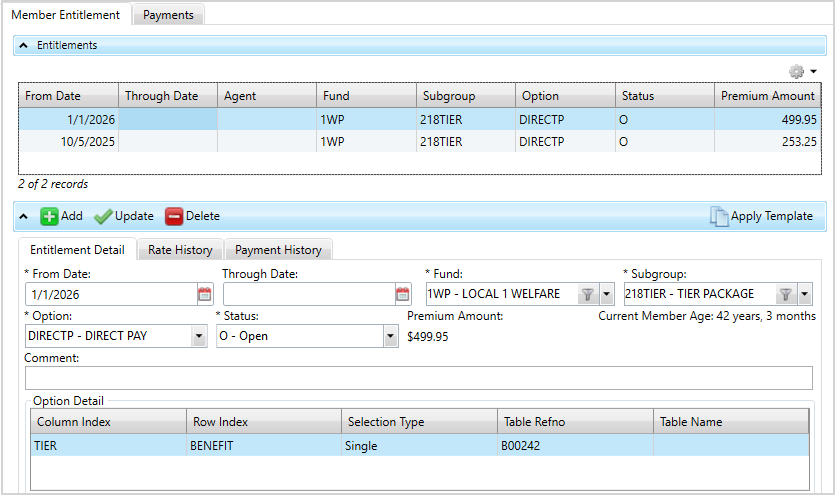
The Member Entitlement screen lets you set up direct pay rate and related information for a member who has become eligible for Direct Pay. This process uses the rate structure created in Rate Tables to determine the rate that required to maintain the member's eligibility. You can then deduct this amount from checks sent to the member through Pensioner as a Withholding or paid directly by the member. Set up a member's Direct Pay entitlement before you can apply payments.
Access Direct Pay Entitlements
- Search for and open the member record.
- From the
Paymentsmenu, selectDirect PayOR from theMembermenu, selectDirect Pay Entitlement. - The
Member Entitlementtab displays and contains three subtabs:

To print or export the data from the table, click  and select the appropriate option. See Common features for more information on printing and exporting data from a table.
 Member entitlements field descriptions
* indicates a required field
| Field | Description |
|---|---|
| Entitlement Detail | |
| *From Date | The date the entitlement is in effect. Click  and select a date or enter a date in and select a date or enter a date in MM/DD/YYYY format. |
| Through Date |
The last date the entitlement is in effect. If this is blank, it means the entitlement is in effect indefinitely. Click Note: ELG SAC <26> defines if overlapping entitlement dates are allowed. If
N, ensure the dates don't overlap before saving. |
| Agent | The agent or person who represents the member regarding this coverage. This field only displays if ELG SAC <26> Prompt for Agent is set to Y. |
| Fund | The fund A plan's asset pool held in trust for the benefit of union members and their families. The fund is the foundation of the basys system. Fund type examples include, welfare, pension, annuity and political action. ID associated with the contribution or payment. |
| *Subgroup | The subgroup to which the entitlement applies. |
| Option | The type of coverage available under the entitlement. |
| *Status |
The status of the entitlement:
|
| Premium Amount | The amount of the member's premium. Applies to the Period Based posting method only. |
| Member Age | The current age of the member, in years and months. |
| Spouse Age | The current age of the member's spouse, in years and months. |
| Comment | An optional comment about the entitlement. |
| Option Detail | |
| Column Index | The index used for the columns in the table. The column and its description display in the dropdown list. |
| Row Index | The index used for the rows in the table. The row and its description display in the dropdown list. |
| Selection Type |
Determines the number of selections to make from the table when you create benefits or entitlements:
|
| Table Refno | The reference number associated with the rate table. |
| Table Name | The name of the rate table. |
| Rate Info | |
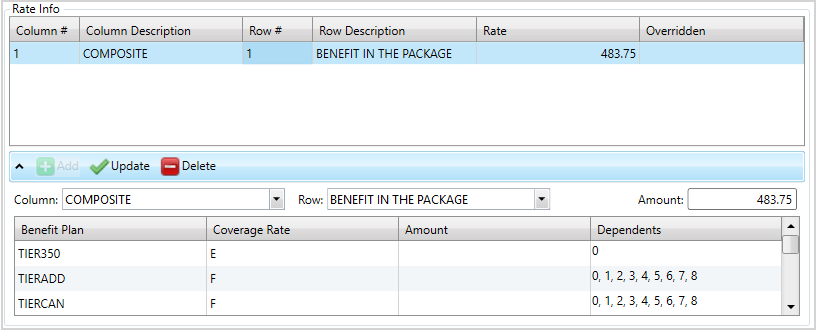
| Column # | The column number of the table. |
| Column Description |
The description of the column. For example:
The selection is automatic if the column or row choice uses a "floating" type or index. |
| Row # | The row number of the table. |
| Row Description |
The description of the row. The selection is automatic if the column or row choice uses a "floating" type or index |
| Rate | The default rate in the table for the intersecting column and row. |
| Overridden | Indicates when changes have been made to the original Rate Amount, Breakdown Amount, or dependent changes. |
| Column | The type of coverage. This field is user-defined based on the Index setup in the Rate Table. |
| Row | Choose who receives the coverage. This field is user-defined based on the Index setup in the Rate Table. |
| Amount | The total amount that's covered for the benefits listed. |
| Benefit Plan | The associated benefit plan to be offered to this member. |
| Coverage Rate | The type of coverage (family, employee, etc.). |
| Amount | The rate amount for the coverage. |
| Dependents | The dependents covered for the selected benefit plan. |
Add an Entitlement
- From the
Entitlements Detailsubtab, click .
. - Select the
From Date. - Select and optional
Through Date. Agentmight display depending on a SAC setting. Select the agent if needed. Contact Bridgeway for more information.- Select the
Fund. - Select the
Subgroup, Option,andStatus. - The
Premium Amount,Member Age,andSpouse Age(if applicable) in years and months display automatically. - Enter an optional
Commentabout the entitlement. - To set up the rate structure for the member entitlements, click a row in the
Option Detailtable.- To enter rate information, click below the
Rate Infotable. - Select the
ColumnandRow. - Then, enter the
Amount. - The
Benefit Plan, Coverage Rate, Amount,andDependentswill display automatically. If needed, you can enter theAmountand choose the coveredDependentsfor each row. The totalAmountthat's covered for the listed benefits is added together and displays above the table. TheOverriddencolumn will note if you overrode the totalAmount. - Click
 to update the
 Rate Info. - If you need to delete a row you added accidentally from either table, select the row and click
 .
.
- To enter rate information, click
- After adding the option and rate detail, click to update the entitlement.
- Click
 to save.

Apply Benefits from a Template
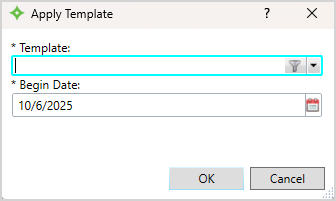
If applicable for the entitlement, you can apply benefits from a pre-configured template. An Apply Template button displays if you have this setting configured. Contact Bridgeway for more information.
-
Click
Apply Template. -
From the window, select the template to apply from the dropdown or use the filter to search for the template.
-
Then, click
 and to save the entitlement.
Update an Entitlement
- Select the entitlement from the table to update.
- Edit the applicable fields in the
Entitlements Detailsubtab, including the option and rate information. - Click to update each table.
- If you need to delete a row you added accidentally from either table, select the row and click .
- Click to save.
Delete an Entitlement
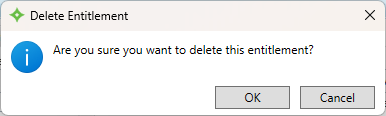
- Select the entitlement from the table to delete.
- Click .
- At the message, click to delete the entitlement or
 to return to the
 Member Entitlementtab without deleting the entitlement. - Click to save and delete the entitlement.
View Rate History
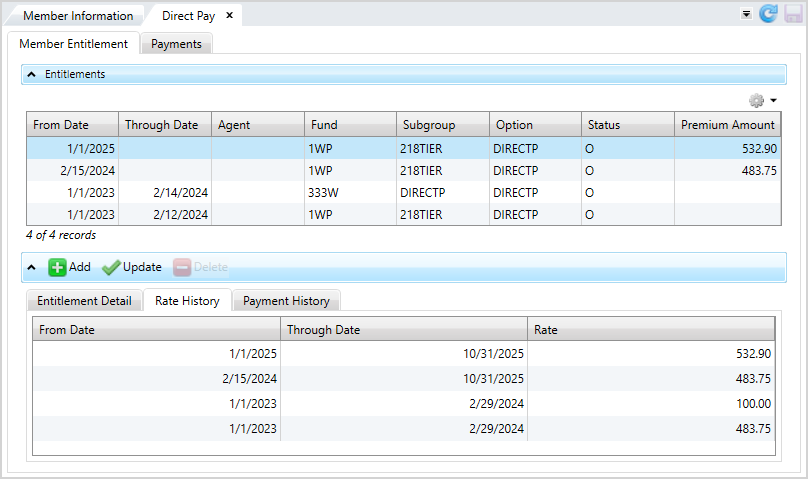
Select this subtab to view a member's rate history for each selected entitlement.
-
From Date— The date the entitlement is in effect. -
Through Date— The last date the entitlement is in effect. If this is blank, it means the entitlement is in effect indefinitely. -
Rate— The rate of the member's Direct Pay entitlement.
View Payment History
Select this subtab to view a member's payment history for a selected entitlement.
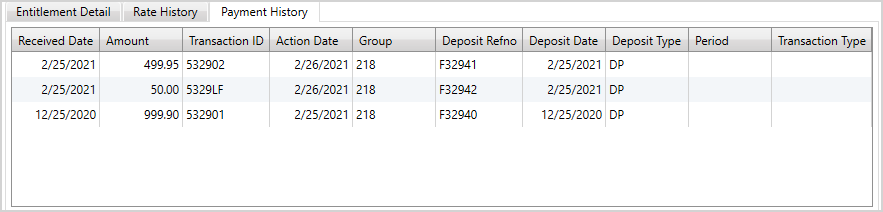
Payment History field descriptions
| Field | Description |
|---|---|
| Seq | The sequence. |
| Received Date | The date the payment was received. |
| Principal Amount | The dollar amount of the payment. |
| Fees Paid | The amount of fees paid by the member. |
| Deposit Date | The date the payment was deposited. |
| Deposit Number | The reference number of the deposit. |
| Transaction Type | The type of payment method used for the transaction (check, ACH, credit card, etc.). |
| Transaction ID | The associated transaction number of the payment. |
| Operator | The ID of the operator who posted the payment. |
| Comment | A comment about the payment. |
| Settlement Status | The status of the payment settlement. |