Configuration
Site Configuration tab and subtabs to set up and manage the system and group A set of members with similar characteristics, (i.e., same type of work, such as plumbers or electricians, or geographic location).-level settings for the employer portal. The
 Core Configs table lists important settings that determine security, what pages display to employers, how communication is managed and other settings. Review the Configuration List to see all the available configurations.
Access portal configurations
Home > System Administration > EmployerXG > Site Configuration
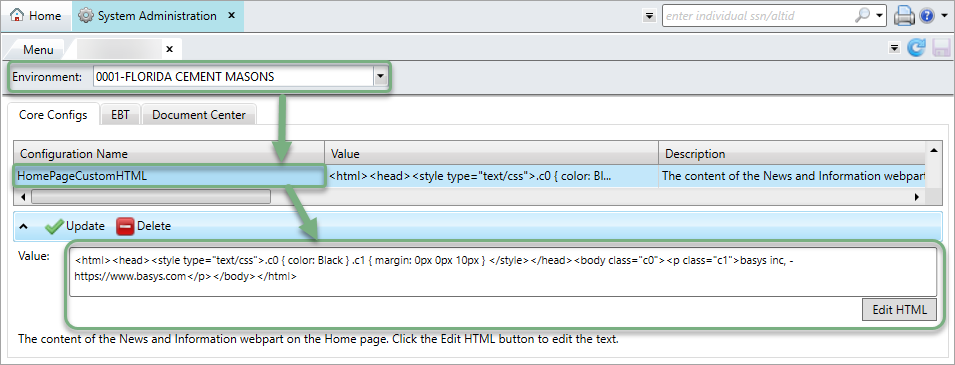
- Select the group, or
SYSTEMfor all groups, from theEnvironmentlist to display portal configurations, current settings, and descriptions in the table. - Select a configuration to view or edit.
- The area below the table will display how the configuration can be edited. For example, most automated email configuration menus look like the example above, while some only let you choose from true or false.
Configuration list
The following table lists the settings you can configure. Configurations that can only be adjusted on the system-level are listed first, followed by configurations that can be adjusted on the group or system level.
Depending on your setup and the applications you have installed, you might not have access to every listed configuration.
See Important setup configurations for a list of configurations we recommend setting up when you first set up your system.
- AlwaysCalculateConversions
- Determines whether the employers can enter a negative quantity in the Remittance Detail Entry page.
-
Always recalculate quantity formulas—Applies when adding or editing members. Prevents employers from overriding app conversion values.Only recalculate while adding members(Default)
- Apply .25 Quantity Interval
- Determines the interval allowed to be entered for any given quantity.
- Check Payment Method Text
- Determine the cart label that displays when making Check payments. The default is
Check. - Copy Past Remittances to Display
- The number of past remittances to display when copying to a new remittance. The minimum is 10 and the maximum is 99. The default is 10.
- Copy Remittance Options
- Determines whether the Copy Remittance button is made available to employers.
-
Show(Default)Hide
- CreditPaymentProcessedEmail - Check
- The text of the email sent to configured recipients when credit is used for a check payment posted to the core administration system. Click
Edit HTMLto edit the text (see Using variables in emails). - CreditPaymentProcessedEmail - EFT
- The text of the email sent to configured recipients when credit is used for an EFT payment posted to the core administration system. Click
Edit HTMLto edit the text (see Using variables in emails). - Default Payroll Disbursement Date
- Determines whether the employer portal populates a default payroll disbursement date.
-
True(Default)—The payroll disbursement date is set to the remittance payroll thru date.False—No default is applied.
- DisableUserEmail
- The text in the email that is sent to an employer when a portal administrator disables the employer's portal account. Click
Edit HTMLto edit the text (see Using variables in emails). - DueRemittanceDisplayCutoffDays
- The number of days added to the EFT payment process date to calculate the deposit date that is transferred to the core administration system.
- eCheck Cutoff time
- The time each day after which the current date can't be selected as the process date for eCheck payments. After the cutoff time, the earliest date that can be selected is the next business day.
- EFT Cutoff time
- The time each day after which the current date can no longer be selected as the process date for EFT payments. After the cutoff time, the earliest date that can be selected is the next business day.
- EFT Float Days
- The number of days added to the EFT process payment process date to calculate the deposit date that is transferred to the core administration system. The default is one day.
- File Upload Remittance Options
- Determines if the File Upload option is available on the employer portal.
-
Show(Default)Hide
- Fund Office Display Name
- The text to use when displaying the Fund Office name in the employer portal.
- Include Supplemental Members in Custom Copy
- Determines if supplemental members are included in the custom copy.
-
True(Default)False
- IsGroupContext
- Require employers remitters to work on one group at a time.
-
True(Default)—Set employer portal to use group-level configuration settings. The group selection control displays on the Home page, and the group selected by the employer determines which logo, News & Information, remittances, and policies display.False—Only see the system-level settings The group-level configurations are ignored, and the system-level settings display.
- LandingFlexibleAndConvenient
- The text that displays on the first panel on the Landing page. To edit the text, click
Edit HTML. - LandingSafeAndSecure
- The text that displays on the second panel on the Landing page. To edit the text, click
Edit HTML. - LandingSaveTimeAndMoney
- The text that displays on the third panel on the Landing page. To edit the text, click
Edit HTML. - Mask Employee ID in Partial Match Employee Notification
- Determines whether the first five digits of employer IDs display as asterisks (masked) in the Partial Match Employee notification.
-
True—The employee ID will be masked.False(Default)—The employee ID won't be masked and employers can see all digits.
- MaskEmployeeID
- Determines whether the first five digits of employee IDs display as asterisks (masked) in all employer portal pages.
-
TRUE—The employee ID is masked on all pages. During remittance entry, the system masks the first five digits.FALSE—The employee ID isn't masked, and employers can see all digits.
- New Employee Status From Date
- From Date to be assigned to new employees in the portal.
- Payment Page Expanded
- Determines where the portal payment cart expands to show each remittance's payment details or collapsed showing an expandable payment summary grid.
-
True(Default)—ExpandedFalse—Collapsed
- Payment Page Text
- Enter text that displays on the payment page. Click
Edit HTMLto edit the text (see Using variables in emails). - Payment Page Text Header
- The custom header that will display in the payment page text panel. The payment page text panel is directly above the Payment Summary panel.
- Payment Retention
- The number of days payment and remittance information is stored in the portal after a remittance is transferred to the core administration system.
- Privacy
- The logo of your privacy certificate vendor, such as TRUSTe. The logo displays on the Landing page. To add a logo, click
Edit HTML. - Remittance Entry Grid—Employee Identifier Header
- The column heading on the Remittance Entry grid for the employee identifier. The default is the employee SSN.
- Remittance PDF Disclaimer
- Text to be displayed on the top of the Remittance Confirmation and Remittance Receipt PDF intended for legal disclaimers.
- RemittanceCancelledScheduledPaymentEmail
- The text of the email sent to configured recipients when an employer portal scheduled payment is canceled. Click
Edit HTMLto edit the text (see Using variables in emails). - RemittancePaymentNoWorkEmail
- The text of the system-generated email that is sent to configured recipients when an employer portal no work report is transferred to the core administration system for posting. Click
Edit HTMLto edit the text (see Using variables in emails). - Remitter Override Label
- Label to display next to the Remitter A portal user than can remit for multiple employers. Override field. This feature is enabled by setting the Remittance Override Employer Type configuration setting.
- ScheduledRemittanceDailyTransfer
- The time each day when remittances are transferred to the fund office system. To change the time, select the hour, minutes, seconds, or time of day, and then click the up or down arrows to increase or decrease the values. This setting applies only to remittances that are scheduled. 12:00AM is the default.
- Security
- The logo of your virus protection vendor; for example, McAfee. The logo displays on the Landing page. Follow the vendor's guidelines for using the logo. To add the logo, click
Edit HTML. - SSL
- The logo of your digital certificate vendor; for example, VeriSign. The logo displays on the Landing page. Follow the vendor's guidelines for using the logo. To add the logo, click
Edit HTML. - Update Partial Match Employees with New Member Status Code
- When posting a remittance, update the partial match employees with the configured new member status code and date.
- User Cannot Reuse Password for (Days)
- The number of days that must pass before an employer can reuse an old password. The count begins on the day when the password was first issued. The default is 365 days.
- User Must Change Password After (Days)
- The number of days an employer's password can be used before it expires and the employer is forced to update the password. The default is 90 days.
- Adjustment Request Back Date
- Limits the work periods during which employers can submit amendment requests. Enter the number of months back from the current month for which employers can enter amendment requests. The default is six months.
- Allow Adjustment Requests
- Determines if employers can submit amendment requests from the History page.
-
True(Default)—Employers can submit amendment requests.False—Employers can't submit.
- Allow Employer Address Update
- Determines if employers can update their address in the employer portal.
-
True(Default)—Employers can update the address.False—Employers can't update the address.
- Allow New Member
- Determines whether an employer can add an employee ID that doesn't already exist in the fund office system.
-
Allow New Employee(Default)—Employer is prompted for the new employee data.Do not allow new employee—Employer can't continue entering data for the new employee.
- Allow Partial Member Posting
- Controls whether a remittance containing partial members will automatically post.
-
Allow remittances with partial members to postSuspend remittances with partial members and notify the fund office—An email is sent to the fund office using the email configured forRemittancePaymentEmailInternalRecipientthat includes an unmasked listing of the member ID in question.
- AllowNegativeQuantity
- Determines whether employers can enter a negative quantity in the Remittance Detail Entry page.
-
True—Employer is expected to enter a minus sign and a number.False(Default)—Employers can't enter negative quantities.
- Assume Leading Zero During File Upload
- Assume up to two leading zeros during the file upload process when the SSN is less than nine characters.
- ContactUsAddress
- The text that displays in the Address panel of the Customer Service Information window. To edit the text, click
Edit HTML. - ContactUsContactInformation
- The text that displays in the Phone Numbers & Contacts panel of the Customer Service Information window. To edit the text, click the
Edit HTMLbutton. - Date Display Format
- The date format used in all employer portal pages. The default is MM/DD/YYYY.
- Default country code
- The default country code used in all employer portal address entry forms. The country codes that are available for selection are defined in the core administration software. The default is USA.
- Default Deposit Type—Check
- The deposit type assigned to employer portal check payments. Select from the list of core administration system non-EFT Electronic funds transfer-money that is transferred electronically. deposit types.
- Default Deposit Type—Credit
- The deposit type assigned to employer portal credit payments. Select from the list of core administration system non-EFT Electronic funds transfer-money that is transferred electronically. deposit types.
- Default Deposit Type—eCheck
- The deposit type assigned to employer portal eCheck payments. Select from the list of core administration system non-EFT Electronic funds transfer-money that is transferred electronically. deposit types.
- Default Deposit Type—EFT
- The deposit type assigned to employer portal EFT payments. Select from the list of core administration EFT Electronic funds transfer-money that is transferred electronically. deposit types.
- Default Deposit Type—No Work
- The deposit type that will automatically be assigned to employer portal no work A blank remittance made to the fund office if no work has been done, and no benefits are accrued during a payment period. reports. Select one from a list of the core administration system deposit types.
- EmployerPortalLogo
- The logo that displays in the header of every employer portal page. To Insert an image in GIF, JPG, or PNG format, click
Select Image. - EnableUserEmail
- The email text sent when an employer administrator enables the employer's portal account. To edit the text, click
Edit HTML. - ForgotUsernameEmail
- If an employer forgets their username, they can request it be emailed to them. This setting contains the text that displays in the email. To edit the text, click
Edit HTML. - HomePageCustomHTML
- Specifies the content that displays in the News & Information apart on the employer portal Home page. To edit the text, click
Edit HTML. - Include Universal Agreements
- Specifies whether employers can select a universally linked agreement An agreement that isn't linked to any specific employer, but is available to all employers. All of the contracts under a universally linked agreement are available to all employers during remittance entry. when they create a remittance.
-
Exclude Universally Linked Agreements(Default)Include Universally Linked Agreements
- MaskEmployeeID
- Determine if the first five digits of employee IDs display as asterisks (masked) in all employer portal pages.
-
TRUE(Default)—The employee ID is masked on all pages. During remittance entry, the system masks the first five digits.FALSE—The employee ID isn't masked, and employers can see all digits.
- Member Partial Match
- Determine what happens when an employer enters an employee ID that exists in the core administration system but can't be validated against the existing member record in the core administration system.
-
Handle as New(Default)—Employer is prompted for new employee data.Prevent Entry—Employer can't enter data for the employee ID.
- Member Required Fields
- The fields an employer must complete when adding a new member. Select the check boxes of the required fields. EmployeeID, FirstName, and LastName don't display in the list, because they're always required. BirthDate is the default.
- Member-owned funds—suppress due date
- For remittances that include a member-owned fund such as a 401(k), this option determines if the due date from the core administration system's Due record displays in the Your Remittances Due table on the Home page.
-
False(Default)—The core administration system's remittance due date displays in the table.True—The core administration system's remittance due date doesn't display, and the due date is blank.
- Member-owned funds—suppress due date message
- If
Member-owned funds—suppress due dateis set toTrue, this message shows when the employer first arrives at the Home page. To edit the text, clickEdit Text. The default is Remittances for which a due date isn't displayed are due on or before the seventh calendar day after your pay date. - New Employee Status
- Status assigned to new employees that are entered via employer portal. Use this setting to distinguish new employees entered via employer portal from new employees entered via the core administration system's Receipts Entry. Select from the list of the core administration system member status codes with the eRemit Flag set to
Y. - NewUserNotification
- The email text sent to a contact when the employer administrator invites them to create an employer account. To edit the text, click
Edit HTML. - OpenRemittanceDescription
- The remittance description that displays in the portal. Select the data elements to include in the description. To learn more, see Update the remittance description.
- Payment Amount Options
- Specify if employer payments must include any damages Additional charges that employers are responsible for based on an agreement (e.g. late fees or legal fees).. The options are:
-
Damage payment not required—Employer can choose to include damages in the payment.Damage payment required(Default)—Employer must include damages in the payment.Damages not included—Damages won't be included in the remittance amount paid, and employers won't be able to make payments towards damages via the employer portal.
- Payment methods
- The payment methods available to employers. The options are
Check Only,EFT Only(Default), andEFT+Check. - Payment Receipt Text—Check
- For a check payment, this optional text (up to 255 characters) shows on the Payment Confirmation page and on the payment receipt. To edit the text, click
Edit HTML. - Payment Receipt Text—eCheck
- For an eCheck payment, this optional text (up to 255 characters) displays in the Payment Confirmation window and on the payment receipt. To edit the text, click
Edit HTML. - Payment Receipt Text—EFT
- For an EFT payment, this optional text (up to 255 characters) displays in the Payment Confirmation window and on the payment receipt. To edit the text, click
Edit HTML. - PostedRemittancesToDisplay
- Determines if the system displays all posted remittances or only those posted via the employer portal.
-
ALL(Default)—The list of remittances that employers can copy from and the remittances that display on the History page include all prior remittances, regardless of operator.Web Only—The system only displays remittances from ContributionsXG that have an operator ofWEBin thecopy fromlist and on the History page.
- PrivacyPolicy
- The privacy policy that displays when an employer clicks the Privacy Policy link at the bottom of the employer portal. To edit the text, click
Edit HTML. - Prompt for Member Status
- Determine if the Status and Status Date columns display in the Employee Details entry table.
-
TRUE—Employer has to select a member status code. Only member status codes with the eRemit flag set toYin the core administration system will display in the list.FALSE(Default)—The system doesn't prompt the employer for a status code.
- RemittanceCommentOption
- Determines if the comment field displays in the Employee Details page.
-
True—The employer can include a comment.False(Default)—The comment field is hidden.
- RemittancePaymentEmailInternalRecipient
- The internal email address to be included as a blind carbon copy on the Remittance Payment Scheduled and Remittance Payment Processed emails. See Remittance transfer email status messages.
- RemittancePaymentProcessedEmail
- The text of the email sent to configured recipients when an employer portal scheduled payment is transferred to the fund office system for posting. Click
Edit HTMLto edit the text (see Using variables in emails). - RemittancePaymentScheduledEmail
- The text of the email sent to configured recipients when an employer confirms a remittance payment. Click
Edit HTMLto edit the text (see Using variables in emails). - RequiredComment
- Determines if remittance comments are required.
-
True(Default)—The Comment field is required.False—The Comment field isn't required.
- SecurityPolicy
- The security policy that displays when an employer clicks the Security Policy link at the bottom of every employer portal page. To edit the text, click
Edit HTML. - TermsOfUse
- The Terms of Use policy that displays when an employer clicks the Terms of Use link at the bottom of every employer portal page. To edit the text, click the
Edit HTMLbutton. - Work Period Back Date
- When an employer creates a new remittance, the work period can be in the past. This setting indicates the number of months back from the current date that is allowed. The default is two months.
- Work Period display format
- The display format for the work period in the Home, Employee Detail, and History pages in the employer portal. The options are
MMYYYYandYYYYMM(Default). - Work Period Forward Date
- When an employer creates a new remittance, the work period can be in the future. This setting specifies the number of future months from the current date that is allowed. The default is zero.
System or Group configurations
Note: We recommend that you adjust this setting only at the system level. Addresses entered in the employer portal aren't validated for Intelligent Mail (IMb) compliance.
Note: Data that has been flagged as Partial Match displays in the Partial Match Employees tab in the employer portal Admin Tool. See Manage partial-match employees.
Note: Employers with active bank accounts must use the EFT payment method, even when the EFT+Check option is selected. The Payment page enforces this rule.
Note: The boilerplate text contains a number of placeholders that must be edited before you offer the employer portal to employers.
Note: The Payment Processed email doesn't indicate whether a processed remittance A remittance (payment) that was sent to the system be processed. posted successfully, was suspended, or failed posting.
Note: The boilerplate text contains a number of placeholders that must be edited before you offer the portal to employers.
Note: You can't change the basys Terms of Use, but you can append your own additional items to the text.