Claim session
Depending on what you need to do and your role and permissions, there are three different ways to work in HealthClaims.
- Claim information—find professional, institutional, or dental claims information for a member to resolve issues or answer questions.
- Claims entry—enter a new professional, institutional, or dental claim.
- Claims processing—edit professional, institutional, or dental pended claims.
The claim session provides access to claim and line item details, alerts, and payment information, depending on your permissions. Refer to the ServiceXG Claim session video for an overview of the Claim session, including how to navigate in a Claim session, set Claim session display preferences, and log interactions with members or dependents about a claim.
Tabs

Claim session tabs have a specific icon so you can easily identify Claim Sessions from other types of sessions.
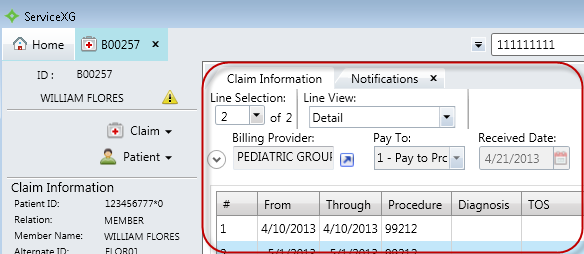
When you open a claim in a claim session, the default claim session tab displays. You can set up the claim session default tab via the Personalize option on the Home session. To learn more about each claim session tab is designed, Claim information.
Navigation pane
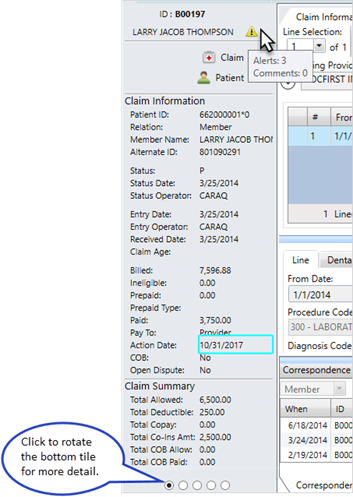
The claim ID and the patient's name are at the top of the navigation pane.
The alert icon indicates there are notifications (alerts and comments) for this claim. If you point at the alert icon, you'll see the total number of alerts and comments for the claim. See Alerts for more information.
The menus you have access to show on the navigation pane.
Data tiles—the Claim Information data tile and four additional rotating data tiles are below the menus. The data tiles can provide answers to most of your member's claim inquiries, including the claim's status and payment details.
The five data tiles show claim summary, fund, patient, billing provider, and claim service provider information.
 Navigation pane field descriptions
The claim summary data tile shows when you first open a claim session. However, if you change it and open a new Claim session, the new session will show the currently selected data tile.
Click each small circle to cycle through the data tiles. To set the default data tile, see Personalize your session.
If  shows next to a value, point to it to show more information about that value. For example if there was a prior payment adjustment, point this icon will show next to the Paid field and when you point to it, the PPA A way to recover a previous overpayment by deducting the amount from a check issued to the same payee until the overpayment is recovered. This reduction has no impact on the benefit of a claim; the impact is on the amount of the check. amount and the amount issued by check.
Session pane
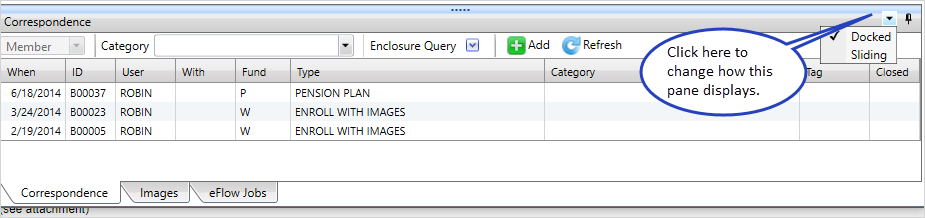
The Session pane at the bottom of the screen is where you can add correspondence items for the patient. If the patient is a dependent, you can choose to add correspondence for the dependent or member.
You can set up Claim session default correspondence settings via the Personalize option on the Home session.