Add, update, or delete an agreement
If you add or delete a contract, or change a contract’s effective dates, the employers linked to the agreement are checked to ensure the employer agreement link effective dates and the status code effective dates aren't before the earliest contract from date or after the latest contract thru date of contracts under the agreement.
If necessary, the employer agreement link and link status dates will be adjusted to the earliest contract from date or the latest contract thru date.
Navigate to agreements
Go to: Home > Codes and Criteria > Contributions > Agreements
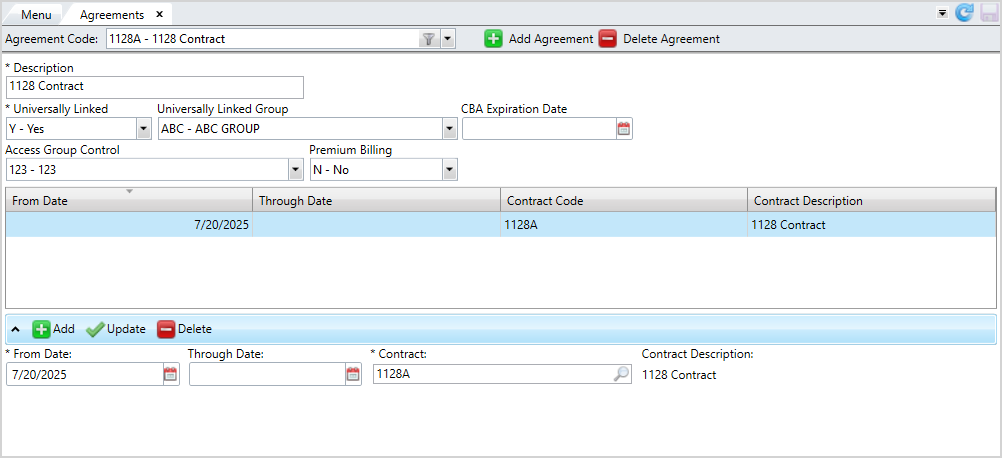
View linked contracts from the Agreements screen. To quickly open a linked contract, right-click a row and select Open Contract.
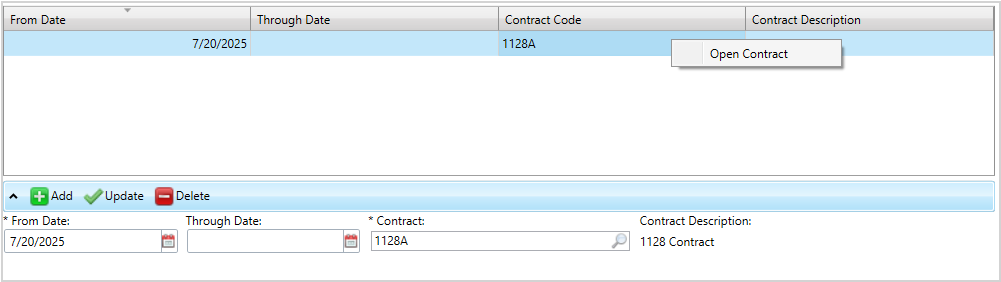
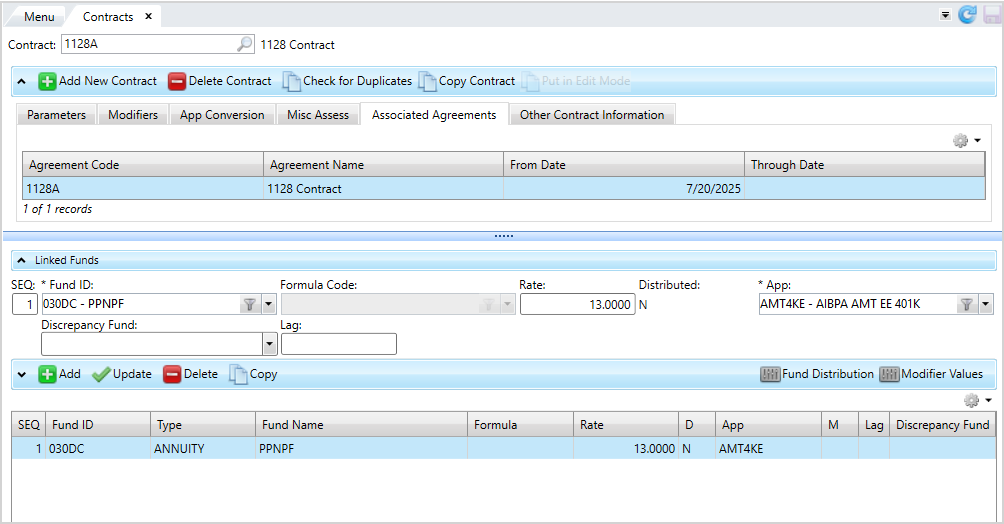
You can also double-click the row to open the Contracts screen.
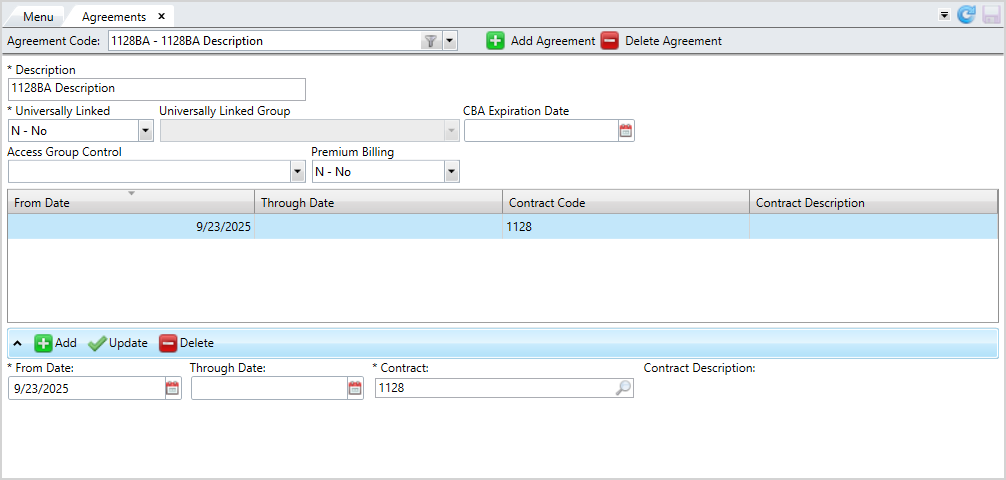
 Agreements Field descriptions
* indicates a required field
| Field | Description |
|---|---|
| *Description |
A description of the agreement that will display on the employer portal. The description can have up to 30 characters. |
| *Universally Linked |
Check box indicating that the agreement is universally linked for all groups:
|
| Universally Linked Group |
The group for the universally linked agreement. Only enabled if you select |
| CBA Expiration Date | The date the collective bargaining agreement (CBA A written contract between the employer and union that governs what and how employers pay towards benefits for their employees. The CBA contains the wages, hours, and other working conditions negotiated for members and also determines how much the employer should pay for benefits, how that payment is to be broken out by fund, and when the payment is due. In the basys system, an agreement is the CBA and links all like contracts under it.) expires. |
| Access Group Code | Select if the agreement should be associated with an access group. See Access Group Control and Agreement and Contract Control for more information. Note that if you already have a contract linked to the agreement, the agreement must use the same access group. |
| Premium Billing |
Indicates if the agreement has premium billing:
|
| *From Date | The start date of the linked contract. Required if you're linking a contract to the agreement. |
| Through Date | The end date of the linked contract. |
| Contract Code | The contract ID associated with the agreement. Displays up to 30 characters. |
| Contract Description | The description of the linked contract. |
Add an Agreement
From contract creation
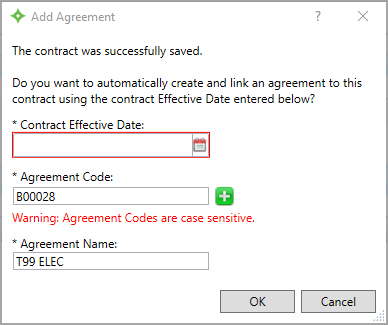
Following the contract creation, you’ll have the option to create and link an agreement for the associated contract if your system is set up to allow this option. If you use access groups, this process sets the agreement's access group to be the same as the contract's.
-
Click
 .
. -
From the
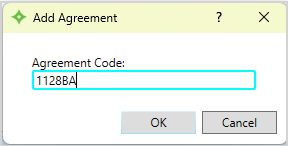
Create New Agreementwindow, enter a name for the agreement. You can enter up to 30 characters. Then, click .
. -
Enter a
Descriptionfor the agreement. -
Choose if this agreement is
Universally Linkedfor all groups.Nois the default. -
If you chose
YesatUniversally Linked, theUniversally Linked Groupautomatically selects all groups. You can choose a specific group for the universally linked agreement. -
Select a
CBA Expiration Date. This date must occur after a linked contract'sFrom Date. -
In
Access Group Control, choose an access group to associate with the agreement. This access group must be the same as the contract's. -
At the
Premium Billingradio button, selectYesif this is a premium billing agreement orNoif it's a contributions agreement. If you selectYes, the contract linked must also be premium billing. -
To link a contract to an agreement, click
 .
.-
Enter the
From Dateand optionalThrough Date. TheFrom DateandThrough Datemust occur before theCBA Expiration Date. -
Enter or search for the
Contractto link. TheContract Descriptionwill automatically display after you select the contract. -
Click
 to update the table.
 -
If needed, you can add another contract, but the range of their effective dates can't overlap.
-
- After verifying the information, click
 to save the agreement and any linked contracts.
 -
If the
FromorThrough Dateshave changed on an existing contract in the agreement, the message "Changes may impact Employer Agreement Link Effective Dates." displays. Click to proceed and save the agreement or  to return to the
 Agreementsscreen without saving.
Update an Agreement
Update general agreement information and the contracts linked to it.
-
Select the agreement to update from the dropdown.
-
Make any changes to the agreement's fields or linked contract(s). You can delete contracts with postings linked to an agreement.
-
Click
and to save.
Delete an Agreement
Delete an agreement to remove any of the agreement's employer links and due records. You can't delete agreements if one or more of the linked contracts have been used.
-
Select the agreement to delete from the dropdown.
-
Click
 .
. -
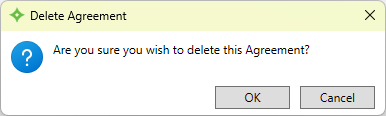
At the message "Are you sure you wish to delete this Agreement?", click
to delete the agreement or to return to the Agreements screen without deleting. -
If you selected
, the agreement is deleted from the list.