Create an Access Group control to grant operators access to a certain list of agreements, contracts, employers, members, or user profiles. No search, session, task mode, or display will be available for an item excluded from the group control.
Process Overview
-
Create the Access Group.
-
Assign that Access Group Control to an Inclusion List for the following controls:
- Within each control, create an Admin (or All) Inclusion List. Make sure you include the No Access Group option in that list.
- Assign the Admin Control group in User Profiles. If you don't have an Admin Control group that includes the No Access Group option you won't be able to assign Access Groups to individual entities.
- Assign the Access Groups to the entities: Members, Employers, Agreements, and/or Contracts.
Step 1 — Create the Access Group
Go to: Home > Codes and Criteria > General > Access Group Code
-
Click
 .
. -
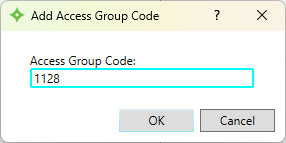
Enter a name for the code and click
 . You can enter up to 20 characters.
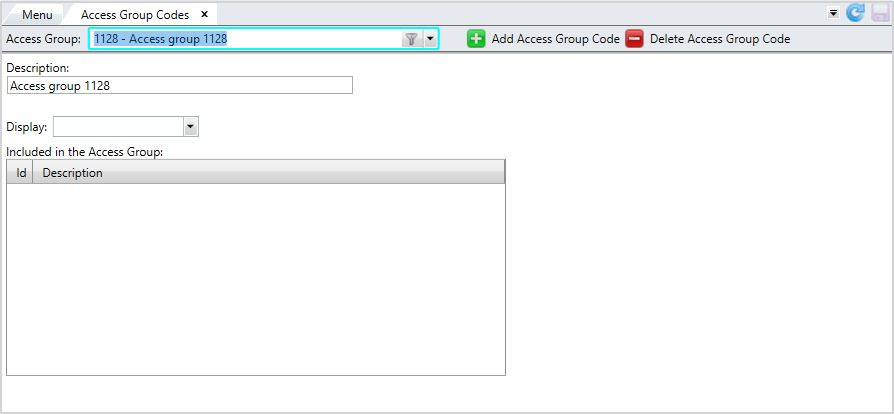
 - Enter a
Descriptionabout the code. You can enter up to 50 characters. -
Click
 to save the code.
 Update an Access Group Control
-
From the
Access Group Codelist, select the code to update. -
Edit the
Descriptionif needed. -
Click
to save your changes.
Delete an Access Group Control
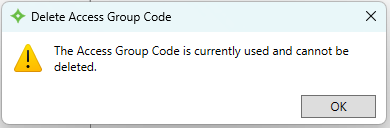
-
From the
Access Group Codelist, select the code to delete. -
Click
 .
. -
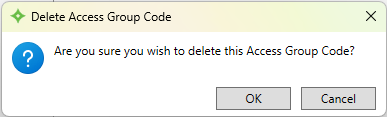
At the message "Are you sure you want to delete this Access Group Code?" click
to delete it or  to return to the
 Access Group Codescreen without deleting. -
If you selected
, the code is deleted.
Step 2 — Assign the Access Group to an Inclusion List
Assign the Access Group Control to an Inclusion List for the following controls:
Step 3 — Add an Admin List
For each of the above security controls, create an Admin (or All) Inclusion List. Make sure you include the No Access Group option in that list.
Creating an admin list ensures that administrators users maintain access to all entities (members, employer, agreements, contracts).
Step 4 — Assign the Groups in the Authorization Profile Editor
Assign operators and administrator users to the appropriate group in the User Profiles.
Step 5 — Assign the Access Groups to the Entities
Complete these steps to link entities to the access group code.
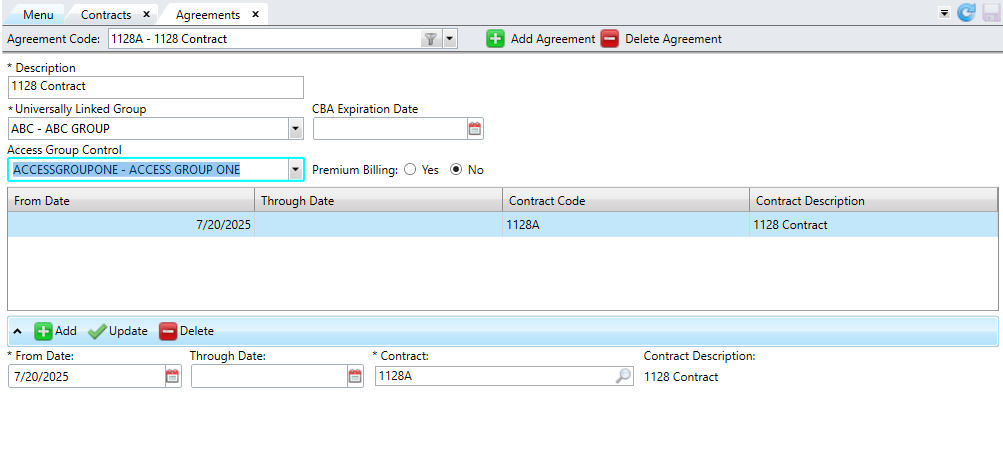
Agreements
- Go to Agreements.
- From the
Access Group Controldropdown, select the access group for the agreement. - Click to save. Repeat this step with all the agreements you want to add to the access group code.
Contracts
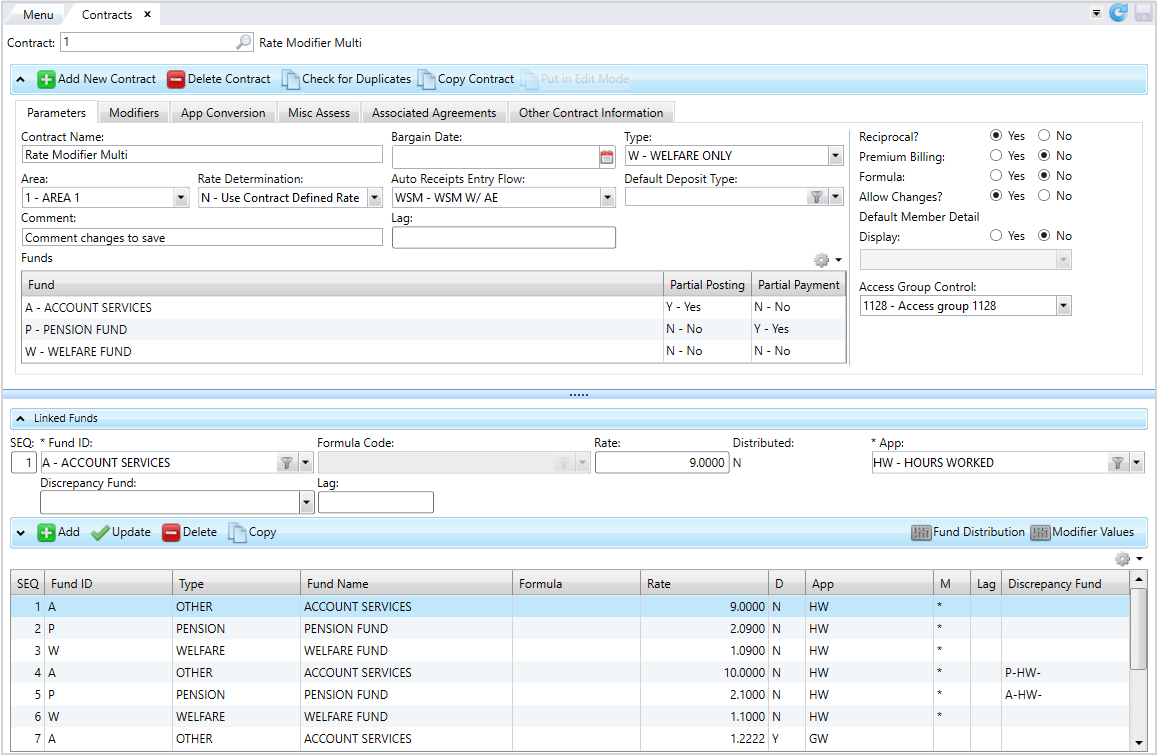
- Go to Contracts.
- From the
Access Group Controldropdown, select the access group for the contract. - Click to save. Repeat this step with all the contracts you want to add to the access group code.
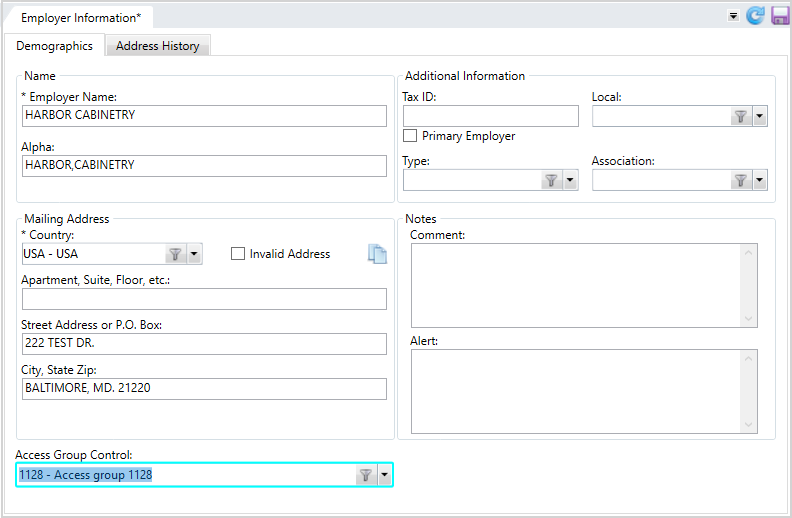
Employers
- Go to Employer information.
- From the
Access Group Controldropdown, select the access group for the employer. - Click to save. Repeat this step with all the employers you want to add to the access group code.
Members
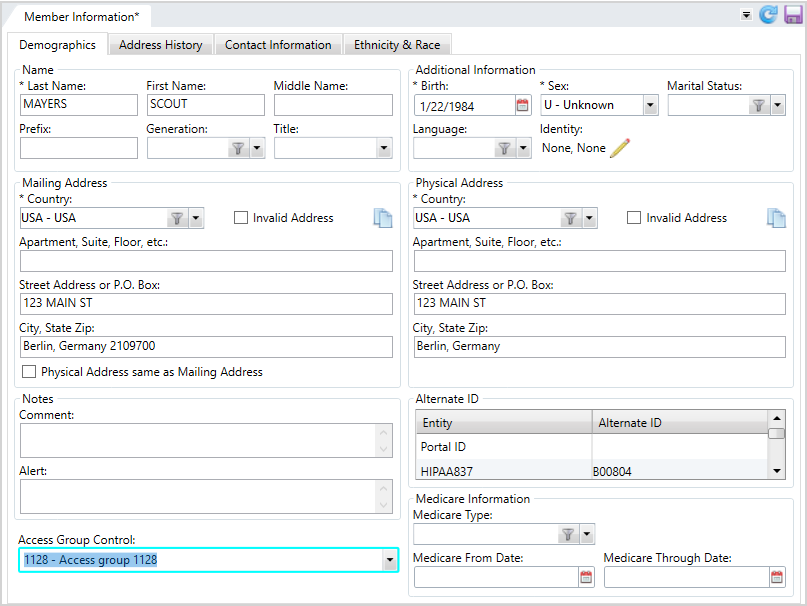
- Go to Member Information (see Add or update a member).
- From the
Access Group Controldropdown, select the access group for the member. - Click to save. Repeat this step with all the members you want to add to the access group code.
User Profile
-
Go the any of the control screens: Employer Control, Agreement and Contract Control, or Member Control.
-
Select the control from the dropdown.
-
Click the
Inclusion Listbutton. -
From the
Access Group Inclusion Listtable, click and select the access group code you just created. This example is for the employer control.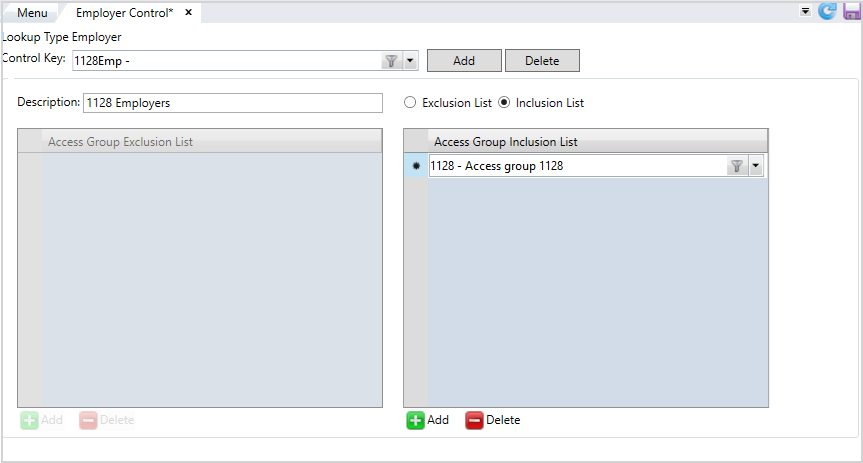
-
Click
to save.
View Entities Linked to the Access Group
- Return to the
Access Group Codescreen. - Click the
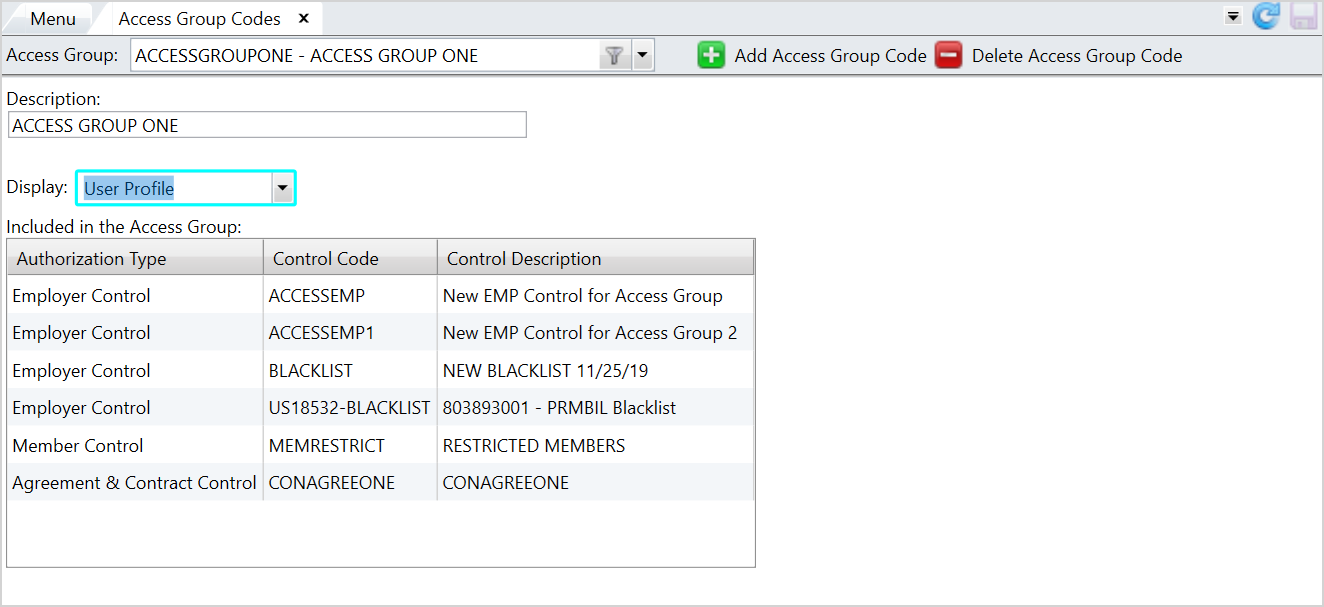
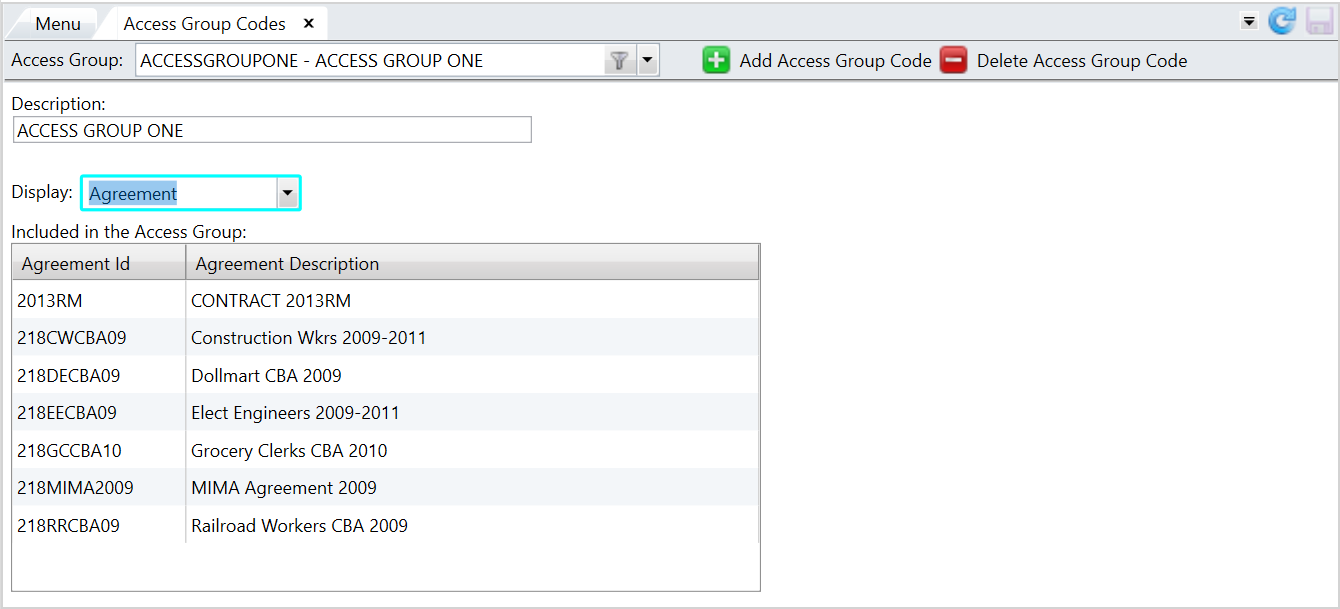
Displaydropdown to and choose an entity type: Only entities linked to the access group display:Agreement— Displays agreements that operators can access in Service.Contract— Displays contracts that operators can access in Service.Member— Displays members that operators can access in Service.Employer— Displays employers that operators can access in Service.User Profile— Displays user profiles that are linked to this access group code.
- The
Included in the Access Grouptable lists the entities linked to the access group. This will display the entity ID and associated description. - For the User Profile, this will display the
Authorization Type(Member, Employer, or Agreement and Contract control),Control Code(name of the control), andControl Description(description of the control).