Link or add an agreement to the employer
Link employers that are signatories of the agreement's associated collective bargaining agreement (CBA A written contract between the employer and union that governs what and how employers pay towards benefits for their employees. The CBA contains the wages, hours, and other working conditions negotiated for members and also determines how much the employer should pay for benefits, how that payment is to be broken out by fund, and when the payment is due. In the basys system, an agreement is the CBA and links all like contracts under it.). The agreement link remains until the CBA A written contract between the employer and union that governs what and how employers pay towards benefits for their employees. The CBA contains the wages, hours, and other working conditions negotiated for members and also determines how much the employer should pay for benefits, how that payment is to be broken out by fund, and when the payment is due. In the basys system, an agreement is the CBA and links all like contracts under it. expiration date, or until it's unlinked or deleted. To link multiple employers to an agreement, use the Agreement link batch process.
Once you create the agreement link, set up remittance and delinquency limits, a status code, and configure whether the funds allow for partial posting or partial payment.
Navigate to agreement links
-
Search for and open the employer you want to link.
-
From the
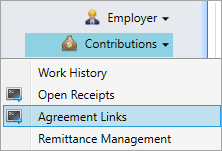
Contributionsmenu, clickAgreement Links.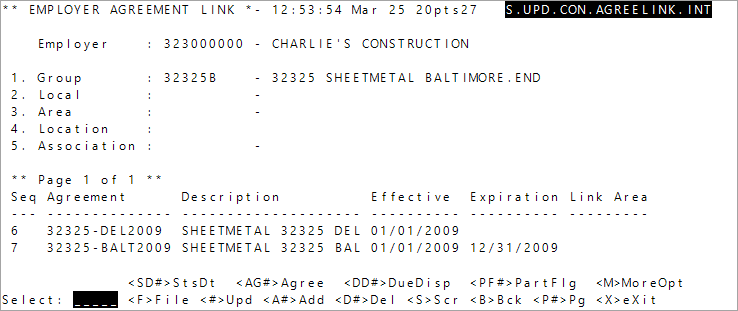
- From window that displays, enter the
Groupsequence number. All linked agreements for the employer group display. A set of members with similar characteristics, (i.e., same type of work, such as plumbers or electricians, or geographic location).
Add an agreement link
-
Enter
Aand the agreement sequence number.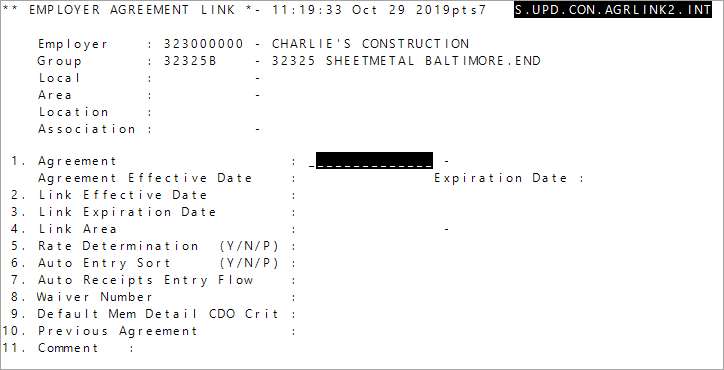 Agreement Link field descriptions
* indicates a required field
- Determine the level remittances apply (group, local, location, area, and/or association). At a minimum, the agreement requires a group qualifier.
-
Specify how often and when remittances are due. Based on the employer agreement link settings, remittance due records are created for the employer agreement at each level (qualifier) combination and contract.
EnterFat the select line to save the employer link.
Employer agreement delinquency
Delinquency parameters decide when a remittance is considered late (delinquent) and when penalties are assessed.
-
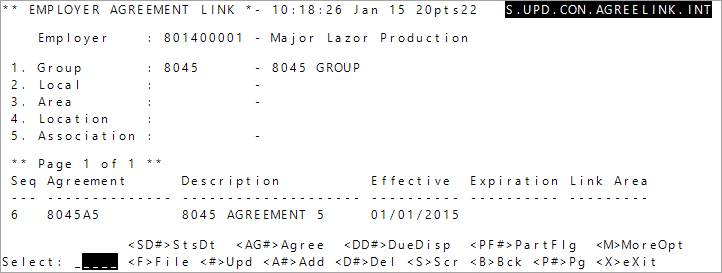
Enter the agreement link sequence number to add or update.
-
Enter
Dat the select line to open the delinquency parameters.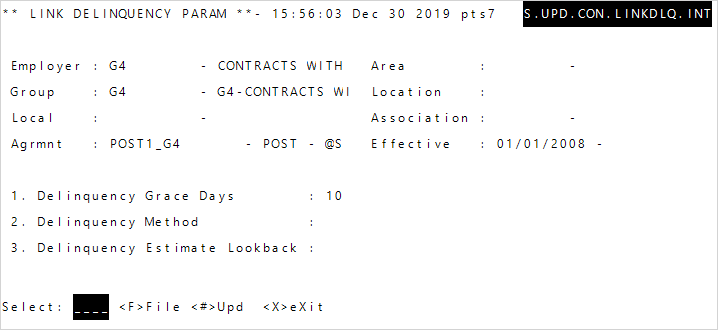 Link Delinquency parameter field descriptions
Option Description Delinquency Grace Days The number of grace days employers have after the remittance due date before they become delinquent. If left blank, the employer will become delinquent one day after the due date. Delinquency Method The delinquency method the employer will be subject to under the agreement. Delinquency Estimate Lookback The number of received remittances used to calculate the delinquency estimate. The delinquency estimate will be the average amount due across the remittances. You can set delinquency parameters at the agreement link or the group level. The agreement link settings take precedence over the group level settings.
-
Enter the delinquency information.
- Enter
Fat the select line to save.
Remittance form settings
Determine how the employer's remittance forms will be handled while the agreement link is in effect.
-
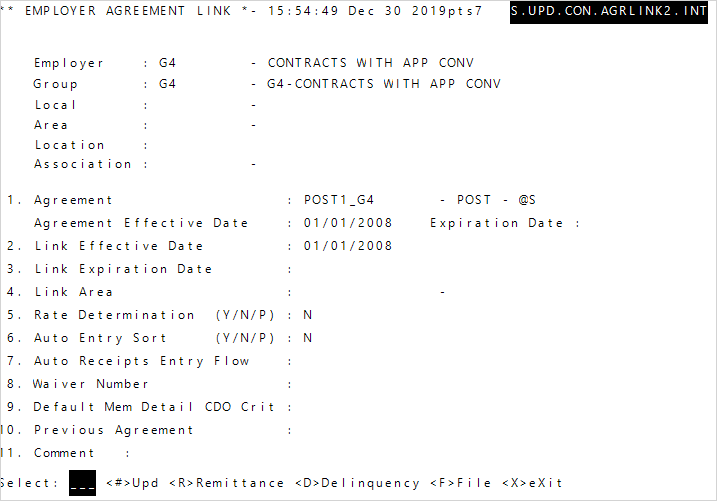
Enter the agreement link sequence number to add or update.
-
Enter
Rat the select line to display the remittance parameters screen.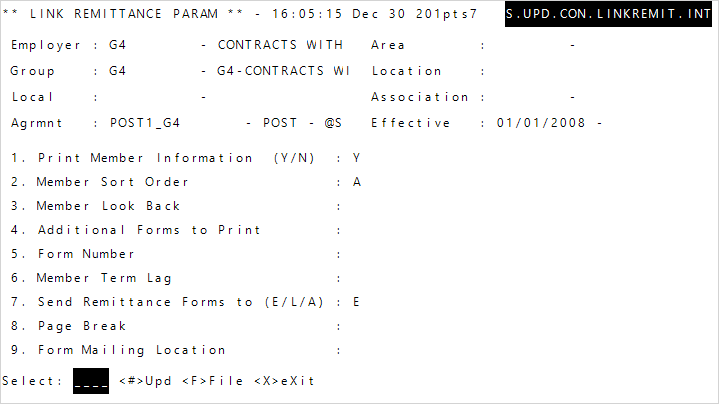 Link Remittance parameter field descriptions
Option Description Print Member Information (Y/N) Determines whether to member information print on remittance forms.
Y—Yes, print member information.N—No, don't print member information.
Member Sort Order
Determines the member sort order during remittance processing.
A—Alphabetical orderS—SSNO—Other; alphabetical order using the members' alt IDsC—Class-
Y—Sort in the order receivedNote: You can use multiple sort codes. For example, enter
ASto order alphabetically, then by SSN.
Member Look Back The number of previous work periods to list members from on remittance forms. Enter nothing, 0, or1to only look back at the previous work period, or enter2to look back at the past two work periods, and so on.Additional Forms to Print The number of additional forms to print. These additional forms only contain header and footer information. Form Number The code to print on forms related to the agreement. If you don't know what code to choose, enter ALLto display a list of all available options to choose from. Then, enter the code's sequence number.Member Term Lag Determines how many months a terminated member will continue to be printed on remittance forms. Leave this blank to stop printing terminated members immediately. Send Remittance Forms to (E/L/A) Where the remittance forms are sent once processed.
E—Send to the employer address.L—Send to the employer's area address.-
A—Send tot the employer's location address.Note: If the area or location address isn't in the system, the employer address will be used.
Page Break Determines how members are grouped on remittance forms. The end of each group is followed by a page break.
C—ClassO—Other; grouped by the members' alt IDs
Form Mailing Location Specifies the location to send remittance forms. -
Enter the remittance information for the form.
- Enter
Fat the select line to save.
Add status codes and effective dates
Statuses define status dates for an agreement link. Identify the status and the effective dates of an agreement link.
Agreement links must have at least one status date. You must add status codes before adding them to agreement links (see Add or update agreement link status codes).
-
Enter
SDand the sequence number of the agreement at the select line (ex:SD6).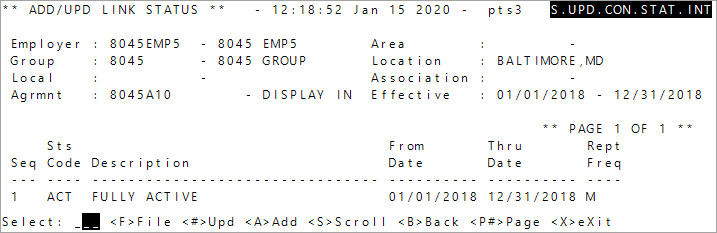
-
Enter the status code information.
Status Date field descriptions
* indicates a required field
Option Type Description Sts Code * Code The user-defined agreement link status code. If you don't know what code to choose, enter ALLto display a list of all available options to choose from. Then, enter the code's sequence number. See Add or update agreement link status codesFrom Date * Date (MM/DD/YYYY) The date the status code is in effect for the agreement. This date must be between the agreement's effective and expiration dates. Thru Date Date (MM/DD/YYYY) The date the status code is no longer in effect for the agreement. This date must be between the agreement's effective and expiration dates. Rept Freq * Code The frequency that employers will send in remittance reports for this agreement link and status. If you don't know what code to choose, enter ALLto display a list of all available options to choose from. Then, enter the code's sequence number. - Enter
Fat the select line to save the code and exit the entry screen. - Enter
Fat the select line to save the employer agreement link.
Configure partial payment and partial posting
Determine if partial payment and partial posting are allowed for an agreement link's funds. Turn on partial payment if you let the employer not always pay for the fund, and turn on partial posting to let the employer pay for less than the fund's total amount due when remitting.
Receipts Entry regardless of this setting. You can also set partial payment and partial posting at the contract level. See FundOfficeXG configuration levels.
-
Search for and open the employer you want to link.
-
From the
Contributionsmenu, clickAgreement Links.
- Enter the
Groupsequence number. All linked agreements for the employer group display. A set of members with similar characteristics, (i.e., same type of work, such as plumbers or electricians, or geographic location). -
Enter
PFand the agreement sequence number (e.g.,PF6).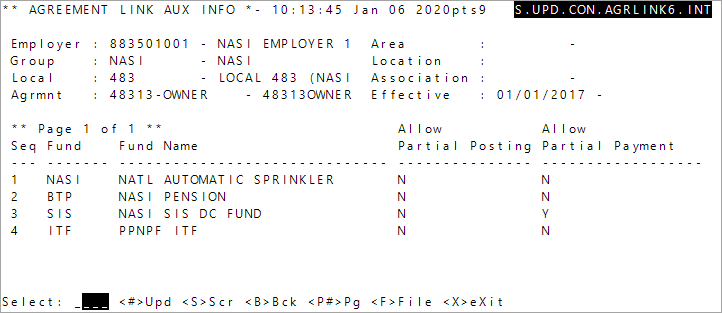
All funds associated to the agreement display.
-
Determine if the agreement allows partial posting and payment by fund.
Note: If these settings are
Nat the contract level (see Create a New Contract), you can't change them toYon this screen. However, you changeYtoNon this screen to create an exception to the contract level. See FundOfficeXG configuration levels. - Enter
Fat the select line to save.
Agreement link batch process
Update agreement links for multiple groups or other qualifiers with a batch Several records being processed at one time. process.
Go to: Home > Administration Processes > Contributions > Agreement/Link Changes
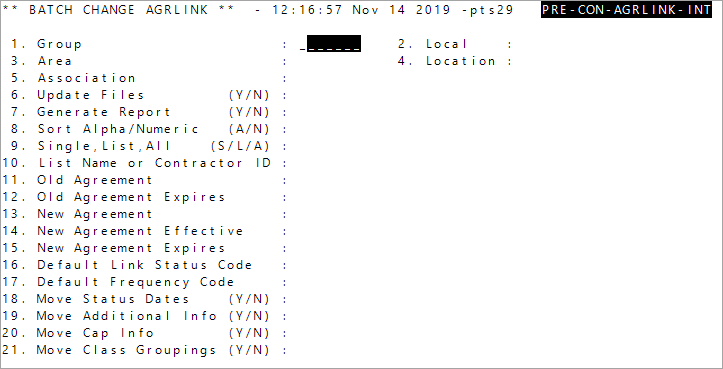
Batch Change agreement link field descriptions
* indicates a required field
| Option | Description |
|---|---|
| Group * | The group A set of members with similar characteristics, (i.e., same type of work, such as plumbers or electricians, or geographic location). code. If you don't know what code to choose, enter ALL to display a list of all available options to choose from. Then, enter the code's sequence number. |
| Local | The local A specific geographical area for union members.. If you don't know what code to choose, enter ALL to display a list of all available options to choose from. Then, enter the code's sequence number. |
| Area | The area A work site or location of employment (e.g. a building, store, geographic area, etc.).. If you don't know what code to choose, enter ALL to display a list of all available options to choose from. Then, enter the code's sequence number. |
| Location | The location A location can be a job location, a location where you want to send remittances or a physical address location. An employer can have multiple locations.. If you don't know what code to choose, enter ALL to display a list of all available options to choose from. Then, enter the code's sequence number. |
| Association | The association for the agreement link. If you don't know what code to choose, enter ALL to display a list of all available options to choose from. Then, enter the code's sequence number. |
| Update Files (Y/N) * |
Determines the employer files update based on the information you enter.
|
| Generate Report (Y/N) * |
Determines if an agreement link changes report is sent to the spooler. Note: We recommend you first run a report without updating the files. After you have verified all the report information, re-run the process to update the files.
|
| Sort Alpha/Numeric (A/N) * |
Determines how the report data is sorted.
|
| Single, List, All (S/L/A) * |
Determines who the batch process will affect.
|
| List Name or Contractor ID |
Determines the employer(s) included in the batch process.
|
| Updating or removing an agreement link | |
| Old Agreement | The employers' current agreement code. This is required if you're updating all employers. If you don't know what code to choose, enter ALL to display a list of all available options to choose from. Then, enter the code's sequence number. |
| Old Agreement Expires | The date on which the current agreement link expires. This field is required if you entered an Old Agreement. |
| Linking a new agreement | |
| New Agreement | The new agreement to link. If you don't know what code to choose, enter ALL to display a list of all available options to choose from. Then, enter the code's sequence number. |
| New Agreement Effective | The new agreement link's effective date. This field is required if you entered a New Agreement. |
| New Agreement Expires | The new agreement link's expiration date. |
| Default Link Status Code | The new agreement link's status code. This field is required if you entered a New Agreement. If you don't know what code to choose, enter ALL to display a list of all available options to choose from. Then, enter the code's sequence number. |
| Default Frequency Code | The new agreement link's frequency code. This field is required if you entered a New Agreement. If you don't know what code to choose, enter ALL to display a list of all available options to choose from. Then, enter the code's sequence number. |
| Move Status Dates (Y/N) |
If you entered old and new agreements, determines if the employer status dates associated with the old agreement link are copied to the new agreement link.
|
| Move Additional Info (Y/N) |
If you entered old and new agreements, decide if the old agreement link additional information is copied to the new agreement link.
|
| Move Cap Info (Y/N) |
If you entered old and new agreements, decide if the cap information from the previous agreement is copied to the new agreement links.
|
| Move Class Groupings (Y/N) |
If you entered old and new agreements, decide if the old agreement link class groupings are copied to the new agreement link.
|
| <O1> Option 1 field descriptions | |
| Sort Order * |
The member sort order during remittance processing.
|
| Months Back |
How many previous work periods to list for members on remittance forms. Enter nothing, |
| Additional Forms | How many additional forms to print. These additional forms only contain header and footer information. |
| Print Members (Y/N) * |
Decide if member information shows on remittance forms.
|
| Remit Form No | The code to be printed on forms related to the agreement. If you don't know what code to choose, enter ALL to display a list of all available options to choose from. Then, enter the code's sequence number. |
| Rate Detail * |
Decide how the rate is determined.
|
| Auto Entry Sort * |
Decide if members are re-sorted for auto-entry receipts.
|
| Auto Rec Ent Flow | The flow code used for this agreement in Auto Receipts Entry. |
| Default Mem Det CDO Crit * |
The default user-defined member detail display criteria that displays on the Member Detail screen in Receipts Entry. Note: This can also be set at the contract, group, or SAC level. See FundOfficeXG configuration levels. |
| Delinquency Grace Days | The grace days employers have after the remittance due date and before they become delinquent. If blank, the employer will become delinquent one day after the due date. |
| Delinquency Method | The delinquency method the employer has under the agreement. |
| Delinquency Est. Lookback | How many received remittances will be used the delinquency estimate calculation. The delinquency estimate will be the average amount due across the remittances. |
| Set Aside Amount |
The dollar amount deducted from the contract rate to the |
| Set Aside Fund | The fund the Set Aside Amount is sent to. If you don't know what code to choose, enter ALL to display a list of all available options to choose from. Then, enter the code's sequence number. |
-
Enter information for the batch change.
Note: You have to at least specify an existing agreement to update or delete, or a new agreement to add. - Verify the information. Enter
Cat the select line to run the process. The agreement link change is now applied to the selected employers.